How do I review a rep's coaching request?
Open it from the top of Activity, play the rep's take, mark each check Heard it, Partly or Missed, write one thing to change, and send it back.
When a rep asks you for coaching in Bridger Sales Academy, their recorded take waits for you under Waiting for your coaching, at the top of your Activity tab, and in your email. Open it, listen, mark each of the play's checks Heard it, Partly or Missed, write One thing to change, and press Send to the rep. You grade blind: the rep's own grade is hidden from you until you have sent yours.
Reps can ask any Learning manager in the workspace except themselves, and they choose who. See Who can manage Sales Academy.
Where do coaching requests show up?
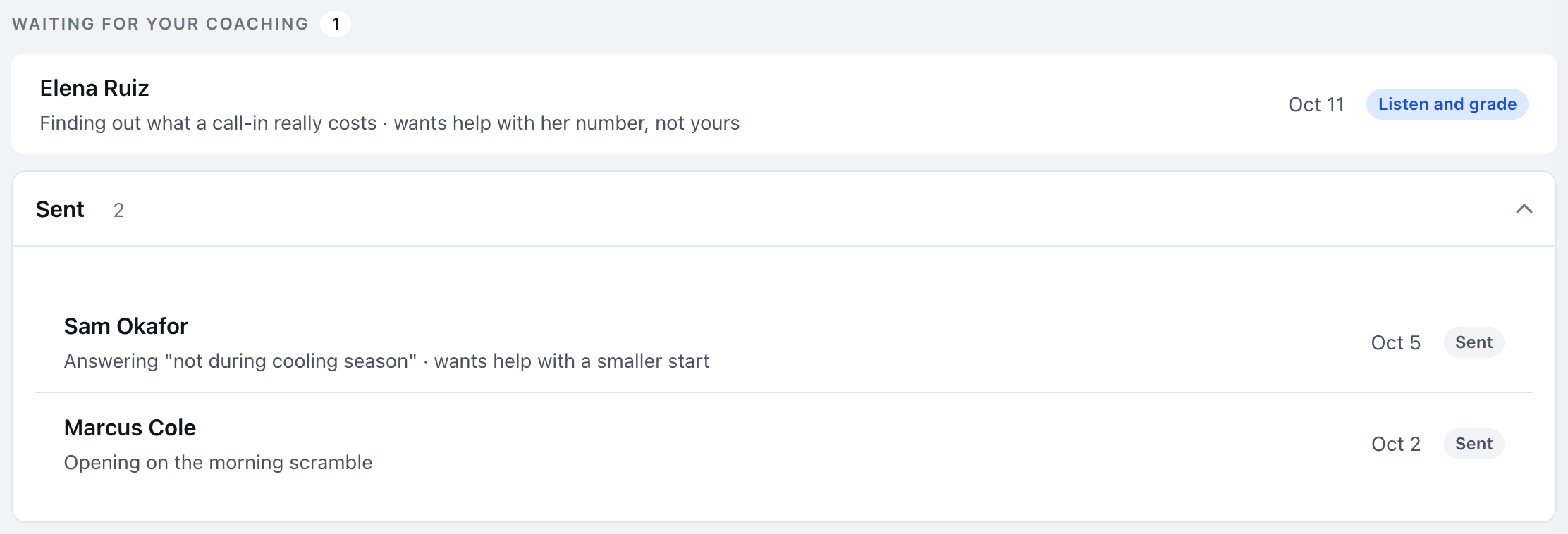
- Waiting for your coaching, at the top of Learning → Activity. The number beside the heading is how many are waiting on you. Each row shows the rep's name, the play, what they want help with, the date they asked, and Listen and grade. Requests you have answered fold under Feedback sent, inside the same card; open it to see them. Clicking a request opens it in a window over Activity, where you can play the take and reread what you sent. When nothing is waiting, the section says "Nothing waiting on you." It does not appear at all until someone has asked you.
- Your email, if Practice coaching is on in Settings → My profile. It is on by default. The subject reads " asked you for coaching".
There is no notification in the bell for coaching.
How do I grade a take?
- Open the request from Waiting for your coaching on Activity (it opens in a window), or from the link in the email (it opens as a page).
- Read what they want help with, and any note they added, at the top.
- Play the recording.
- For each check the play lists, choose Heard it, Partly or Missed.
- Under One thing to change, write the single change that would make their next take land. This is optional.
- Press Send to the rep. The button stays off until every check is marked ("Mark every check to send.").
Once sent, the grade is locked and the page says "Sent." followed by the rep's first name and "sees your grade beside their own." The rep is emailed that your coaching is back, if they have Practice coaching on, and sees it on their Practice page next to the grade they gave themselves.
What can I see, and what can't I?
You see:
- the recording the rep chose to send
- the play and its checks
- what they want help with, and their note
You do not see the rep's own grade before you send yours, their other takes, or anything they recorded but did not send. Only the one take they chose to send ever leaves their device.
How long is the recording kept?
A coaching take is kept for 30 days from when it was sent, then deleted. If the recording has already gone when you open the request, the page says "The take has been deleted." and you can still mark the checks from the play.
What is a certification take?
On a path that requires a recorded roleplay, the rep sends their take with Send for certification instead of Ask for coaching. It arrives in the same Waiting for your coaching list and is graded the same way, with one extra question at the end: Does it meet the standard? Answer Meets the standard or Not yet. You must answer it, and mark every check, before you can send.
Your answer becomes part of what the rep needs before they can request sign-off. A certification take is kept while the request is pending or the certification is valid. See How do I approve or send back a certification?
Does anyone else hear about a request?
If your workspace has a team channel (Slack or a shared support mailbox) set to Coaching requested, it gets a message naming the rep, the coach and the play. The recording, the rep's note and what they want help with never go to a channel. See Which Sales Academy events send an email or Slack message?
Related
This did not answer your question? Email hello@bridgercreative.com.