How do I change which emails I get?
Settings → My profile → Notifications. Each email has its own switch, all on by default. Team-wide Slack and shared-mailbox channels live under Settings → Connectors.
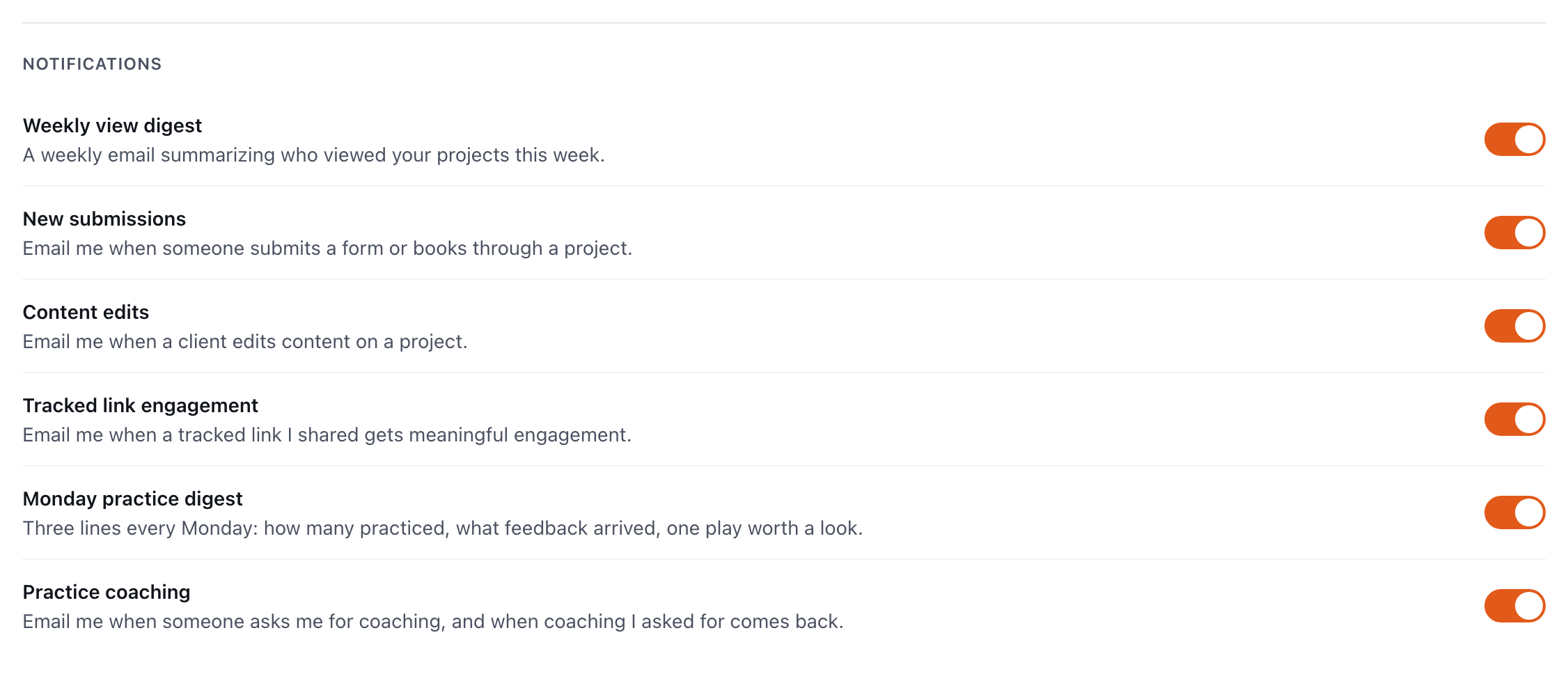
To change which emails you get, go to Settings → My profile and use the switches under Notifications. Each kind of email has its own switch, every switch starts on, and a change saves the moment you flip it. These settings are yours alone: they change nothing for your teammates.
Which emails can I switch off?
| Switch | What it sends | Who sees the switch |
|---|---|---|
| Weekly view digest | A Monday summary of the presentations that drew outside visitors in the past week, compared with the week before. Not sent in a week with no outside visitors. | Everyone |
| New submissions | One email each time someone submits a form, quiz or booking in one of your presentations. | Everyone |
| Content edits | An email when someone in your workspace edits a presentation's content. | Everyone |
| Tracked link engagement | An email when a tracked link you created is opened and properly looked at. | Everyone |
| Monday practice digest | Three lines every Monday about your team's Sales Academy practice. | Learning managers, when Sales Academy is on |
| Practice coaching | An email when someone asks you for coaching, and when coaching you asked for comes back. Also covers certification requests and decisions. | Everyone, when Sales Academy is on |
Your preferences follow you into every workspace you belong to.
How do I stop one email straight from my inbox?
Every one of these emails has an Unsubscribe (or Stop these emails) link at the bottom. It switches off that one kind of email only. Switch it back on from Settings → My profile at any time.
Why am I not getting emails I switched on?
- You have not signed in yet. Activity emails start only after your first sign-in.
- There was nothing to send. The weekly digest skips a week with no outside visitors, and the practice digest goes only to Learning managers.
- Lead details are restricted. If a Workspace owner has turned on Restrict lead details in notifications to workspace owners and editors, a Member's New submissions email says that a response arrived, without the person's name or answers.
- Spam. Look for mail from
auth.bridgercreative.com.
What is the bell, and can I turn it off?
The bell at the top of the sidebar (top right on a phone) is your workspace's activity feed: new results, a presentation going live, and tracked links being looked at. It cannot be switched off and is not affected by your email settings. When there is nothing new it says You're all caught up. Whether an item is read is tracked for you alone.
How do I send notifications to the whole team?
Workspace owners and Editors can set up Team channels: a Slack channel or a shared inbox that gets workspace activity, on top of each person's own email.
- Go to Settings → Connectors.
- Under Team channels, open Slack notifications or Shared support mailbox.
- For Slack, paste an incoming webhook URL from your Slack workspace; it must start with
https://hooks.slack.com/services/. For the mailbox, enter one or more email addresses. - Choose the events the channel should hear about, and save.
The events a channel can carry:
| Event | When it fires |
|---|---|
| New submission | Someone submits a form or books through a presentation |
| Project goes live | A presentation is published |
| Client edited content | Someone edits a presentation's content |
| New client request | Someone in your workspace uses Ask a question or Request a new project |
| Practice material shared | Someone shares material with Bridger for Sales Academy |
| Coaching requested | A rep asks a manager for coaching |
| Certification ready for sign-off | A rep requests certification sign-off |
| Rep certified | A manager approves a certification |
| Path completed | A rep finishes every step of a path |
An address that already gets an event as personal email does not get a second copy from the shared mailbox. Sales Academy channel messages carry names and titles only — never recordings, grades or notes. See Sales Academy notifications.
Below the channels, CRM and Branded links are not available yet; choose Request this → or Ask about this → to tell the Bridger team you want them.
This did not answer your question? Email hello@bridgercreative.com.