What can each workspace role do?
Roles and permissions — Workspace owner, Editor and Member. Owners and Editors manage the team and presentations; Members view, share and see Insights.
Every person in a workspace has one of three roles: Workspace owner, Editor or Member. Workspace owners and Editors can manage the team and the presentations; Members can open, share and track presentations but change nothing else. The role applies to one workspace only.
What can each role do?
| What | Workspace owner | Editor | Member |
|---|---|---|---|
| Open presentations and Insights | Yes | Yes | Yes |
| Create, copy and delete share links | Yes | Yes | Yes |
| Copy a presentation's embed code | Yes | Yes | Yes |
| Set their own profile and email preferences | Yes | Yes | Yes |
| See presentations that are not live yet, in Library | Yes | Yes | No |
| Reorder Library and pin a presentation to Home | Yes | Yes | No |
| Duplicate, archive and restore presentations | Yes | Yes | No |
| Edit content and make editions, on the Studio plan | Yes | Yes | No |
| Download a PDF, on the Studio plan | Yes | Yes | No |
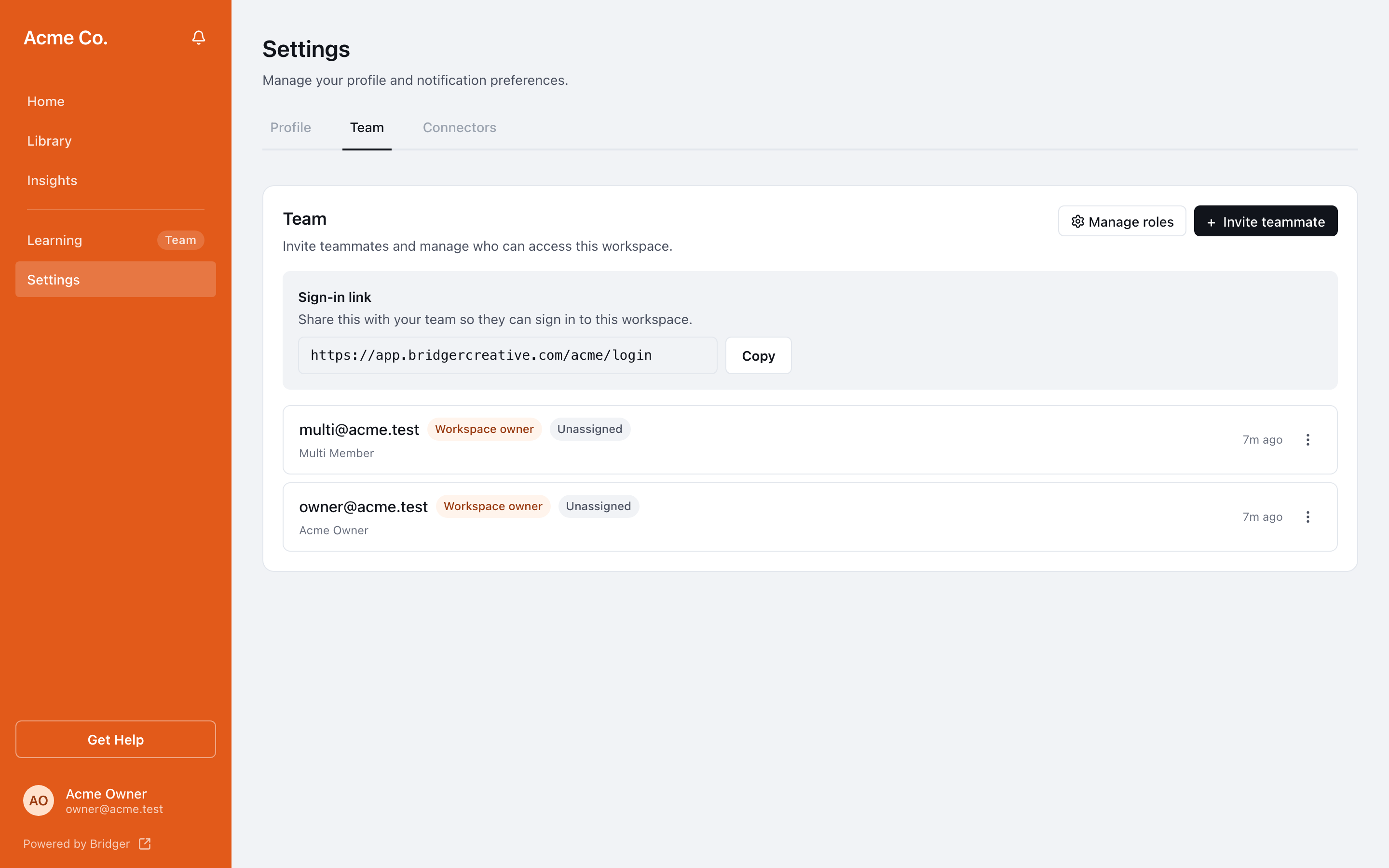
| Invite, re-invite and remove people, and change their roles | Yes | Yes | No |
| Set up shared Slack or mailbox channels (Settings → Connectors) | Yes | Yes | No |
| Choose Lead details in notifications | Yes | No | No |
A Member sees only My profile under Settings. Workspace owners and Editors also get Team and Connectors.
Nobody in a workspace can permanently delete a presentation; archived ones can always be restored. Password protection, link expiry and restricted access are set by the Bridger team — see Who can see a share link.
What is the difference between a Workspace owner and an Editor?
Only one thing in the portal: a Workspace owner sets Lead details in notifications, which decides whether Members see a lead's name and answers in the bell and their personal emails. Insights pages are not affected. Everything else in the table is the same.
A workspace must keep at least one Workspace owner. The last one cannot be removed or given another role until someone else is made an owner: their Remove option is missing, and their profile says This is the workspace’s only owner. Promote another member before changing this role.
Who decides someone's role?
The person who invites them picks it under Permission; it starts as Member. The first person invited to a new workspace always becomes its Workspace owner. After that, any Workspace owner or Editor can change anyone's role from Settings → Team — including making someone a Workspace owner. The role picker on each person's profile describes the three as Workspace owner — everything, including lead privacy, Editor — edit and manage projects, and manage the team and Member — view projects and share links. See How do I invite, re-invite or remove a teammate?
To see your own role, open Settings → My profile and look under Role & access.
How do Sales Academy manager and rep seat fit in?
When your workspace has Bridger Sales Academy switched on, two more settings sit on top of the role. They are not roles, and they do not change anything in the table above.
| Who can have it | What it gives | |
|---|---|---|
| Sales Academy manager | Workspace owners and Editors — on by default, and they can opt out. Never a Member. | Builds paths and plays, sees team activity, answers coaching requests, signs off certifications. |
| Rep seat | Anyone in the workspace | Their assigned paths and Practice. |
A Member with no rep seat has no Sales Academy at all. A Workspace owner can change anyone's Sales Academy manager setting and rep seat; a Sales Academy manager can give or take away seats and opt themselves out. Both switches are on each person's row in Settings → Team. The full rules are in Sales Academy managers and rep seats.
Are roles the same in every workspace?
No. If you belong to more than one workspace, your role is set separately in each. Being a Workspace owner in one gives you nothing in another. See How do I switch between workspaces?
Why does the Bridger team not appear as a role?
The Bridger team has its own roles in its own console, separate from yours. That is why your top role reads Workspace owner, never just "Owner": it covers one workspace, and Bridger's roles do not. You cannot invite, change or remove a Bridger team member from your workspace, and an address that belongs to the Bridger team cannot be invited as a client.
This did not answer your question? Email hello@bridgercreative.com and say which workspace you mean.