How do I sign in to my Bridger portal?
Go to your workspace address, enter your email and the 6-digit code from your email. There is no password, and each code lasts one hour.
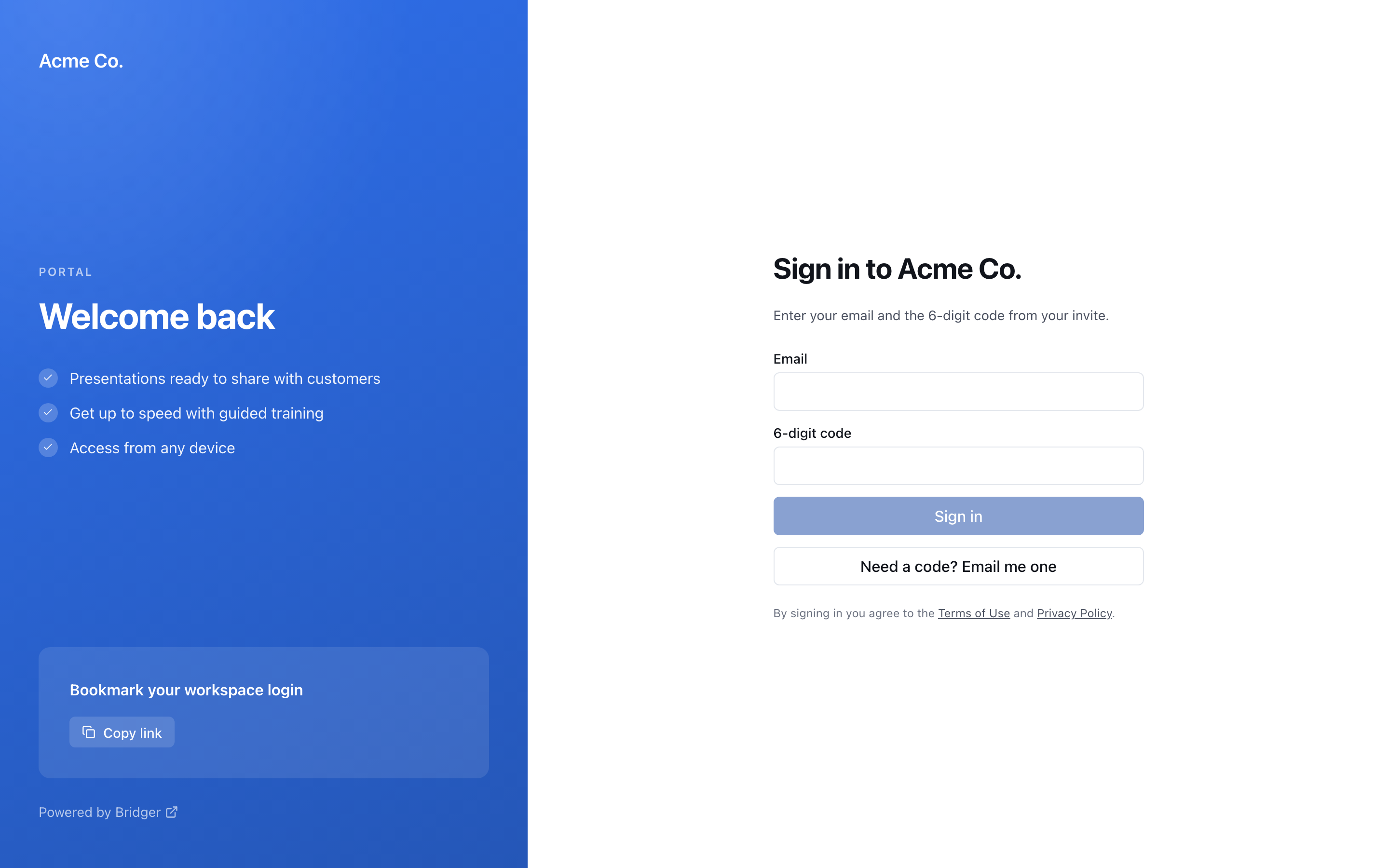
You sign in to your Bridger portal with your email address and a 6-digit code sent to that address. There is no password to set or reset. Go to your workspace's own address, enter your email and the code, and choose Sign in.
What is my workspace address?
Your workspace address is app.bridgercreative.com/ followed by your company's short name — for example app.bridgercreative.com/acme. It is in your invitation email, and once you are in, it is shown under Your portal address in Settings → My profile. Bookmark it: it is the only address you need.
You can also start at app.bridgercreative.com/login, which works for every workspace but does not carry your company's branding.
How do I sign in with the code from my invitation?
Your invitation email holds a code already, so your workspace's sign-in page opens ready for it.
- Go to your workspace address. The page reads Sign in to and your company's name.
- Enter the email address the invitation was sent to.
- Type the 6-digit code from the invitation into 6-digit code.
- Choose Sign in.
On app.bridgercreative.com/login, the page asks for your email first. Choose I already have a code to get to the same code screen without sending a new one.
How do I get a new code?
- On your workspace's sign-in page, choose Need a code? Email me one. (On
app.bridgercreative.com/loginyou start here.) - Enter your email and choose Send code.
- Open the email titled Your sign-in code and type the code into the portal.
- Choose Sign in.
If you mistyped your address, choose Use a different email and send again.
How long does a code last?
| Rule | What it means for you |
|---|---|
| A code expires after 1 hour | An invitation opened the next morning has a dead code. Ask for a new one on the same page — anyone who has been invited can. |
| A code works once | After you sign in with it, it is spent. Signing in on another device needs a new code. |
| A new code replaces the old one | Asking for a code makes every earlier code stop working, including the one in your invitation. Always use the newest email. |
If you ask for codes in quick succession, the page may refuse the next one for a short while and say so. Wait a minute and try again.
The code did not arrive
Check these in order:
- Spam, junk or a quarantine folder. Search for the sender address
auth.bridgercreative.comrather than the word "Bridger". - The address you typed. It must be the one you were invited on. The portal is invite-only and never creates an account for a new address.
- Whether you have access at all. If nobody has invited your address, the page still moves on to the code screen — it never says whether an account exists — but instead of a code you get an email titled About your Bridger sign-in explaining that access is invite-only. Ask your workspace owner, or your Bridger contact, to invite you.
More detail is in I didn't get my sign-in code. If a code arrives but is refused, see My sign-in code doesn't work.
Why is there a "Continue with Google" button for some people?
That button appears only on the Bridger team's own sign-in page. Your workspace's sign-in page offers the code alone, and that is the page to use.
How do I sign out?
On a computer, open the menu under your name at the bottom of the sidebar and choose Sign out. On a phone, go to Settings and choose Sign out at the bottom of the page. Sign out on a shared or borrowed computer; closing the tab does not do it.
This did not answer your question? Email hello@bridgercreative.com.