How do I share a presentation?
Open the presentation, select Share, then name a tracked link with Generate or copy your standard link. Anyone in the workspace can share.
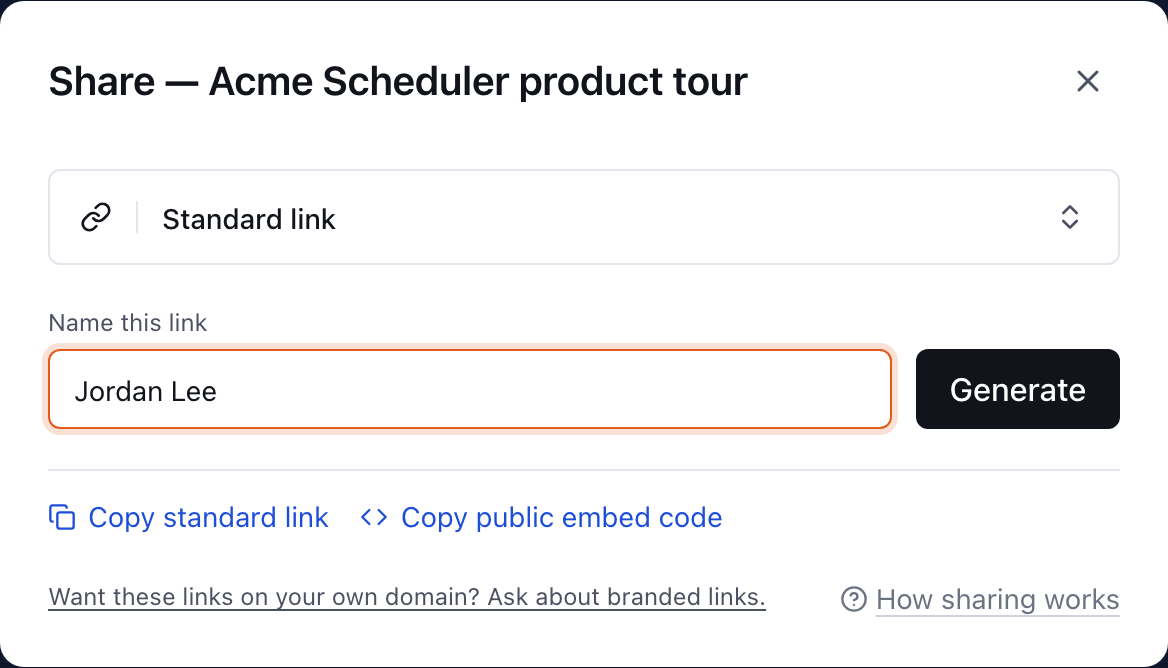
To share a presentation, open it from Library and select Share at the top right. In the dialog, type the recipient's name under Name this link and select Generate to make a tracked link, or select Copy standard link to copy a general-purpose link. Anyone in your workspace can share, whatever their role.
Which link should I send?
There are two kinds of link, and they open the same presentation.
| Link | How you get it | What Insights shows |
|---|---|---|
| Tracked link | Type a name under Name this link, then Generate | Visits through it are attributed to that name |
| Standard link | Copy standard link | Visits are recorded, but not tied to a named person |
Send a tracked link when you want to know whether a particular person opened it. Make one per recipient. If you forward one link to a group, every visit is attributed to the single name on it.
If Bridger has made the presentation private, the dialog offers no standard link: make a tracked link with the recipient's Email, because a private presentation only opens for the address the link was made for. See who can see a share link.
A personalized link is a third kind. It's a tracked link whose content is also tailored to the recipient. You make those from the presentation itself, not from this dialog.
How do I make a tracked link?
- Open the presentation and select Share.
- Make sure the selector at the top shows Standard link.
- Under Name this link, type who the link is for, for example the recipient's name or company.
- Select Generate.
- Select Copy Link and paste it into your email or message.
The code icon inside the link box copies that link's embed code instead. See how to embed a presentation.
Why does the presentation show my name?
Some presentations have a contact card or a "book a meeting" button filled in from whoever sent the link. Copy standard link copies a standard link that belongs to you, so the card shows your details. A tracked link shows the details of the person who generated it.
Those details come from Settings → My profile: your name, Title, Phone, Calendar and photo. Fill them in before you share, or the presentation shows whatever the designer put there instead.
Can I share from the Library without opening the presentation?
Yes. In Library, open the ⋯ menu on the presentation's card and select Share. The same dialog opens. Open in new tab on the same menu opens the presentation's public link.
How do I see or delete the links I've made?
Open the presentation, select the ⋯ menu beside Share, then View all links. The panel lists every link, filtered by All links, Personalized or Standard. Each row has buttons to open its insights, copy its embed code, copy the link, and delete it.
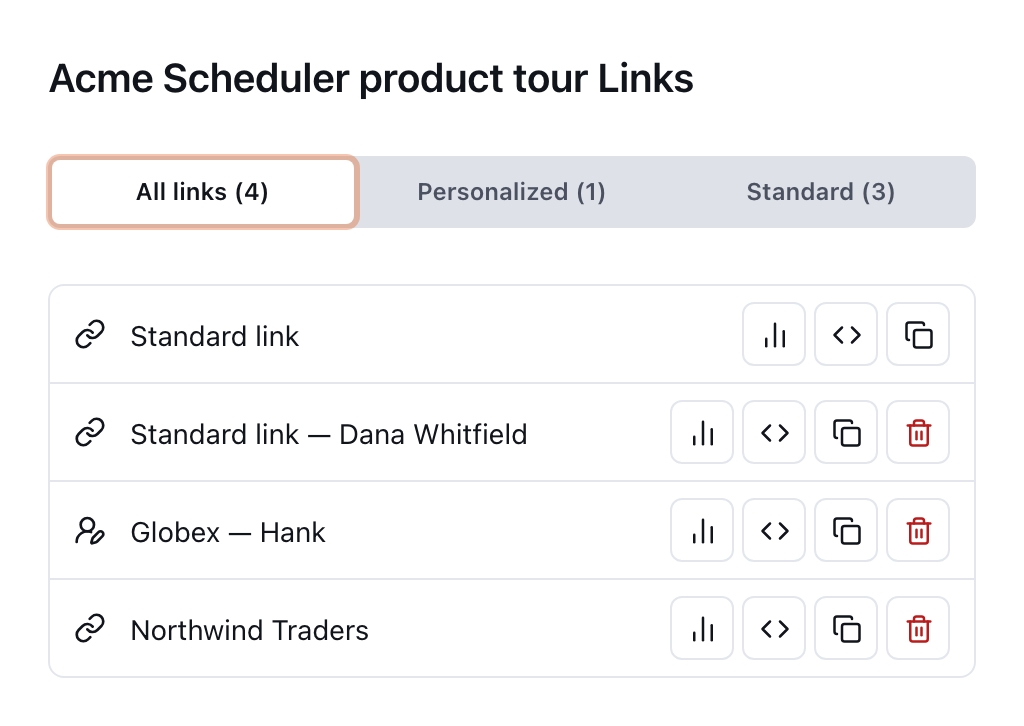
Deleting a link can't be undone. As the confirmation says, anyone holding it loses access, and its recorded sessions are removed. Other links aren't affected. Anyone in your workspace can delete any link, not only the ones they made. The presentation's own link, the row labeled Standard link, can't be deleted from here.
Can the links use our own domain?
Not on your own yet. At the bottom of the Share dialog, select Want these links on your own domain? Ask about branded links. to send your Bridger team a request.
Related
This did not answer your question? Email hello@bridgercreative.com.