How do I embed a presentation on my website?
Copy the embed code from the presentation's ⋯ menu or the Share dialog and paste it into your page. It works on any website.
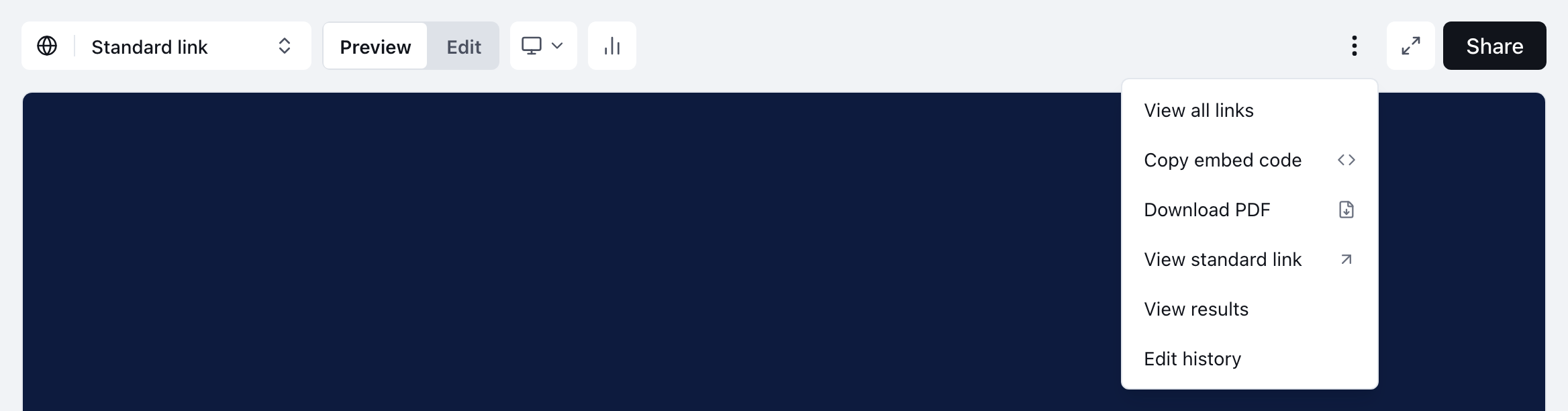
To embed a presentation, open it, select the ⋯ menu beside Share, and choose Copy embed code. Paste the code into your website wherever HTML is allowed. The presentation appears in your page at full width in a 16:9 frame, and visits to it are recorded like any other visit.
Where do I copy the embed code?
There are four places, and each copies the code for a particular link:
| Where | Which link the code uses |
|---|---|
| ⋯ menu → Copy embed code | The personalized link selected in the toolbar, or the presentation's public link when none is selected |
| Share → Copy public embed code | The presentation's public link |
| Share, the code icon inside a link's box | That link |
| ⋯ menu → View all links, the code icon on a row | That row's link |
The menu item reads Copied for a moment once the code is on your clipboard.
Embed a named link instead of the public one if you want the visits from your website grouped under that name in Insights. For example, name a link "Website" in the Share dialog with Generate, then copy its embed code.
What does the embed code look like?
The code is a single iframe, ready to paste. It looks like this, with your presentation's address and title filled in:
<iframe
  src="https://app.bridgercreative.com/embed/your-link-code"
  style="width:100%;border:0;aspect-ratio:16/9"
  loading="lazy"
  allow="autoplay; fullscreen"
  title="Your presentation title"
></iframe>
What each part does:
srcis the link it shows. The address is always complete, starting withhttps://, so it works when pasted into another website.width:100%fills whatever column you paste it into.aspect-ratio:16/9keeps it in the presentation's proportions as the column narrows or widens.loading="lazy"waits to load the presentation until a visitor scrolls near it.allow="autoplay; fullscreen"lets videos play and lets visitors go full screen.
You can change the style, for example to give it a fixed height, but the presentation is designed for a 16:9 frame.
Which websites can I embed it on?
Any website. The presentation is allowed to load inside a frame on any site, and you don't need to register your site's address with Bridger. Website builders usually call the place to paste it an "HTML", "Embed" or "Custom code" block.
Do passwords and email verification work inside an embed?
A password does. If Bridger has set a password on the presentation, the password page appears inside the embed and visitors unlock it there.
Email verification doesn't. It only checks people who open a named link directly, so it never applies inside an embed. For the same reason, a presentation Bridger has restricted still loads when it's embedded. Whoever can reach your web page can view the presentation in it. See who can see a share link.
Are embed views counted?
Yes. A visit through an embed on your website is recorded like any other visit. Previews inside your workspace, including the presentation shown on its own page and on Library cards, aren't counted. See what the numbers count.
If you delete the link an embed uses, the embed stops showing the presentation. If the presentation is moved back to Draft or archived, the embed shows Building a new experience, come back soon! until it's live again.
This did not answer your question? Email hello@bridgercreative.com.