Who can see a share link?
A share link is unlisted, not private — anyone holding it can open it. What Bridger's access settings change, and what they do not.
By default, anyone holding the link can open the presentation, with no sign-in, no account and no invitation. The link is unlisted, which is not the same as private: it isn't listed anywhere and it won't be guessed, but it works for whoever it is forwarded to.
That is usually what you want. It's why a link can go in an email and be opened on a phone in a meeting. But a forwarded link means the person it reached can view the presentation, so keep that in mind before you send anything you wouldn't want passed on.
Who sets the access controls?
The Bridger team does. Access, email verification and passwords are settings on the presentation that only Bridger can change. Nothing in the Share dialog changes them. When a presentation is restricted, the Share dialog shows a Private label beside its title. To change who can open a presentation, select Get Help in your workspace and ask.
What do the access controls do?
Restricted access. Opening the presentation's public link directly no longer shows the presentation. Visitors see Building a new experience, come back soon! instead. Named links with a recipient email still open it, after the check below. A link with no recipient email on it, such as a main edition link or an edition before its email is set, shows the same "come back soon" page, so on a restricted presentation the Share dialog does not offer Copy main edition link.
Email verification. This always comes with restricted access. A named link that has a recipient email on it asks the visitor to confirm that address before showing anything. The visitor sees This project is private, selects Send a code to their address, then types the 6-digit code and selects Verify & view. A forwarded link doesn't get past this, because the code goes to the original recipient's inbox.
A password. Visitors see Password required and type a password before the presentation opens. The password is set on the presentation, so it applies to every link to it: the public link, named links, editions and main edition links, opened directly or inside an embed. Unlocking once opens every link to that presentation in the same browser for 24 hours.
Do these controls apply when the presentation is embedded?
Only the password does. Email verification checks people who open a link directly. It never applies inside an embed on a website, because the site doing the embedding decides who reaches that page. For the same reason, a restricted presentation still loads when its public link is embedded. A password set on the presentation is asked for inside the embed. See how to embed a presentation.
How do I stop a link from working?
- One link. Delete it from View all links on the presentation's ⋯ menu. Anyone holding it loses access, and its recorded sessions are removed. Your other links keep working. See how to share a presentation.
- Every link at once. When the presentation isn't live, because Bridger has moved it back to Draft or it has been archived, every link shows Building a new experience, come back soon! If the presentation goes live again, its links start working again at the same addresses.
What does each link record?
Every visit is recorded: when it happened, how long it lasted and which pages were viewed. A named link also attributes the visit to the name on the link. That's the reason to send each person their own link instead of forwarding one address to a group.
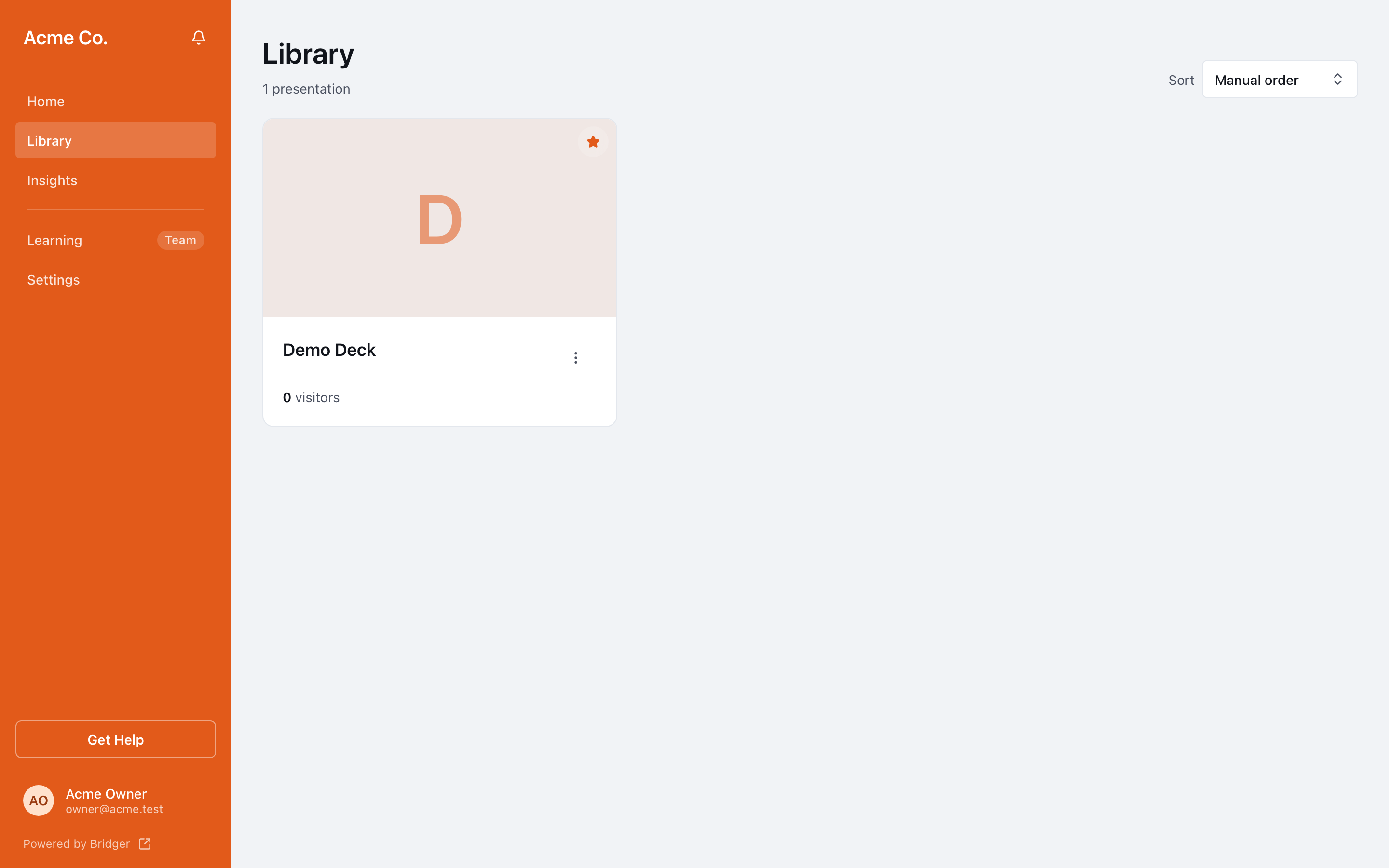
Previews inside your workspace aren't counted as visits. When a signed-in teammate opens a link, the visit is marked internal so it can be separated from your audience. See what the numbers count.
This did not answer your question? Email hello@bridgercreative.com, or select Get Help in your workspace to reach the people already working on the presentation.