How do I duplicate, archive or restore a presentation?
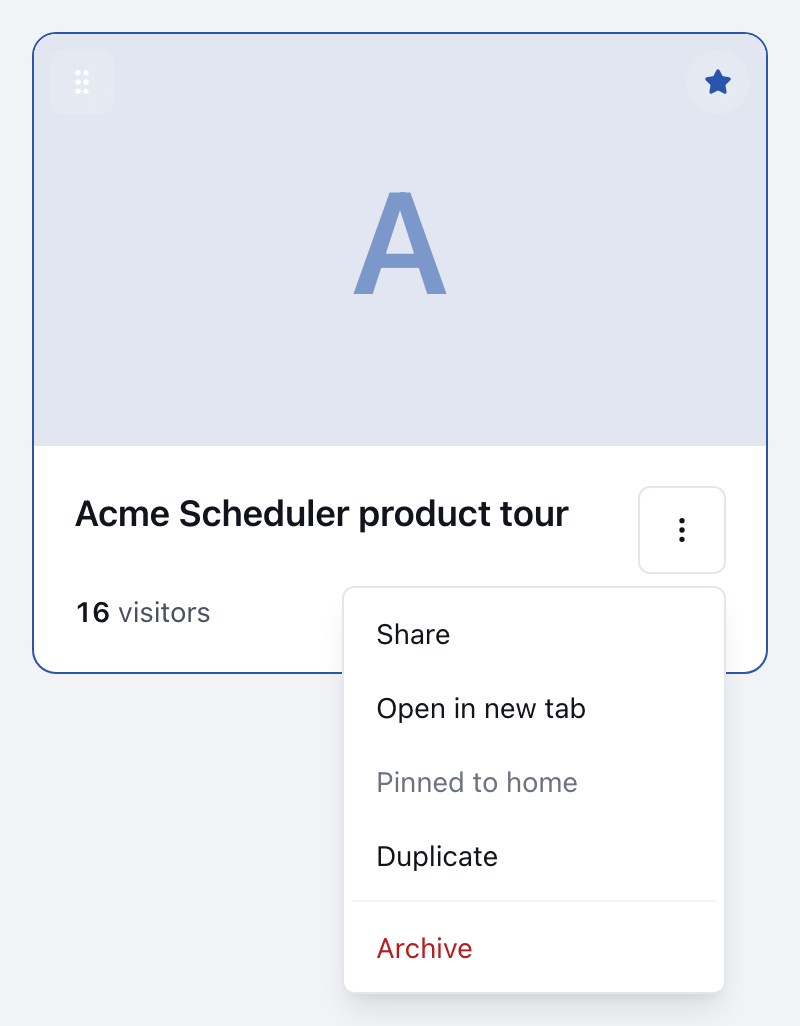
Use the ⋯ menu on a presentation's card in Library. Copies and restored presentations start as Drafts that Bridger publishes.
To duplicate or archive a presentation, open Library, select the ⋯ menu on the presentation's card, and choose Duplicate or Archive. Archived presentations are listed under Archived at the bottom of the Library, where Restore brings them back. You need to be a Workspace owner or Editor. Members don't see these options.
How do I duplicate a presentation?
- In Library, select the ⋯ menu on the presentation's card.
- Choose Duplicate.
- In Duplicate project, change the Name if you like. It starts as "Copy of" and the original's title.
- Select Duplicate.
You're taken to the new copy. As the dialog says, a copy has the same design with fresh content to tailor, and it starts as a Draft with its own (reset) share links. It ends: Your Bridger team publishes it when it’s ready.
| Copied to the new presentation | Not copied |
|---|---|
| The design and all its text and image edits | Share links, including personalized links |
| Page order and hidden pages | Visits, responses and other Insights history |
| Which features Bridger turned on: editing, reordering, personalization |
A copy starts as a Draft, and only the Bridger team can publish a presentation. Until they do, opening the copy shows This deck isn't live yet. Owners and Editors still see it in the Library. Ask your Bridger team through Get Help to publish it.
How do I archive a presentation?
Select the ⋯ menu on its card, choose Archive, and confirm. The confirmation reads: It moves to the Archived list — you can restore it anytime.
Archiving takes the presentation offline. Every link to it, including embeds on your website, shows Building a new experience, come back soon! instead. Its links, visits and responses are kept.
You can't permanently delete a presentation from your workspace. Archive is the furthest it goes. To have one deleted for good, ask your Bridger team.
How do I restore an archived presentation?
- Scroll to the bottom of Library and open Archived. The number beside it is how many are archived. Each row shows the presentation's address, when it was created and, if it was ever live, when it was first published.
- Select Restore on the presentation's row.
A restored presentation comes back as a Draft, not live. It returns to the Library, but its links keep showing the "come back soon" page until Bridger publishes it again. Once it's live, its existing links work again at the same addresses.
How do I change the order of my Library?
Set Sort at the top of the Library to Manual order, then drag cards into the order you want. Your Home page follows this order. The other sorts, Recently created, Name (A–Z), Most visitors and Most leads, are for viewing only, and dragging is off while one is selected. The Library reminds you: Switch to Manual order to rearrange your library.
How do I put a presentation on my Home page?
With Sort on Manual order, select the ⋯ menu on its card and choose Pin to home. The option only appears in Manual order. The presentation moves to the top of your Library order and becomes the presentation featured on Home. Exactly one presentation is pinned at a time, and its menu shows Pinned to home. To change it, pin a different one. Only live presentations can be featured on Home.
This did not answer your question? Email hello@bridgercreative.com.