How do I edit the text and images in my presentation?
Switch the presentation from Preview to Edit, select an edit button on the slide, change it and publish. Changes go live straight away.
To edit your presentation, open it from Library and switch the toggle at the top from Preview to Edit. Edit buttons appear on every part of the slide you're allowed to change. Select one, make your change, and select Publish changes. The change is live straight away for everyone who opens the presentation. There is no approval step.
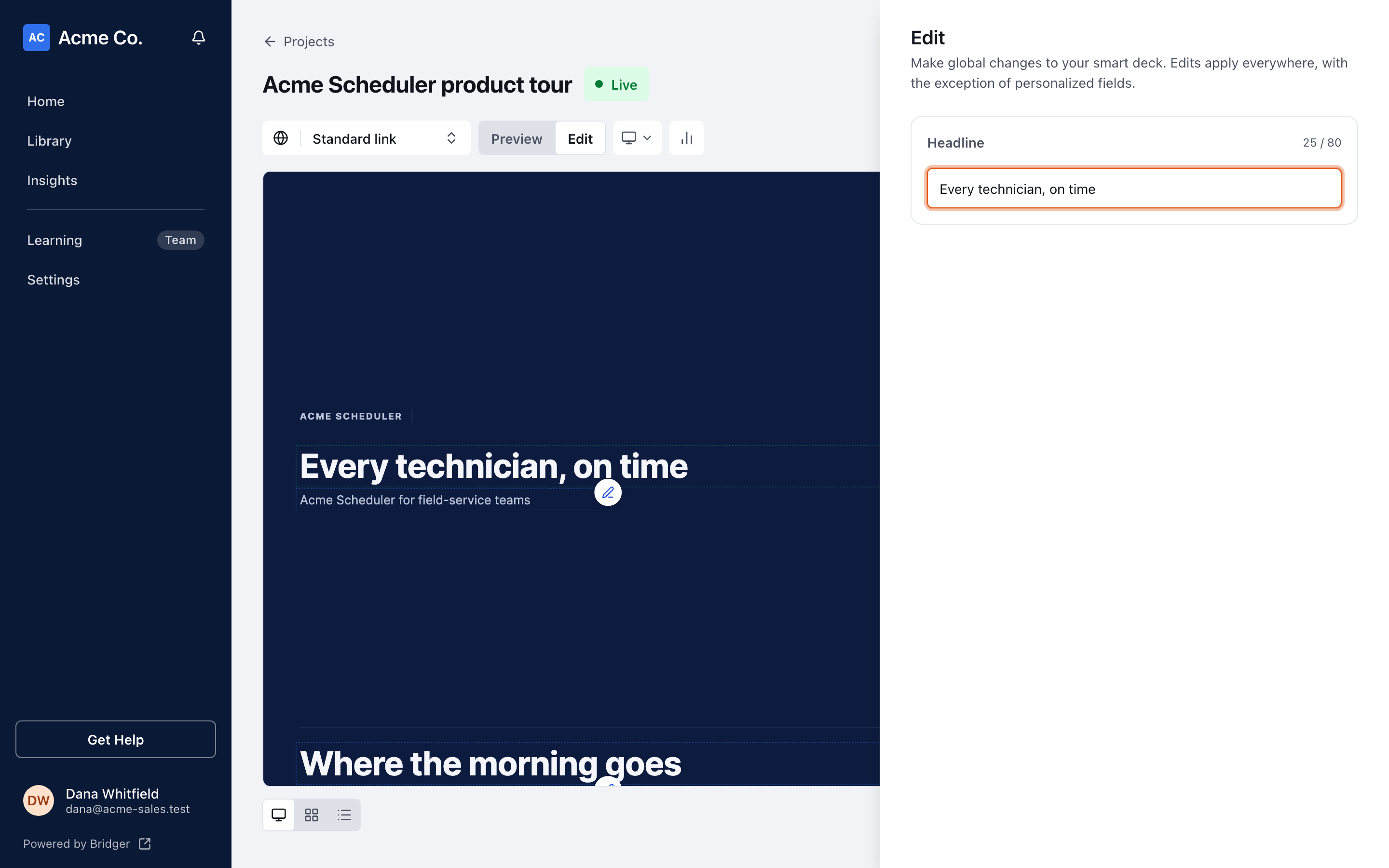
Who can edit a presentation?
Editing is available when both of these are true:
- Bridger has turned on content editing for this presentation. It's off until they do.
- You are a Workspace owner or Editor. Members see the presentation but can't edit it.
If you don't see the Preview and Edit toggle, one of those isn't true. On some older presentations the editable fields are listed under the presentation instead of appearing as edit buttons on the slide.
What can I change?
Only what the Bridger team has made editable. Parts they've kept for themselves get no edit button and don't appear in any list, so you'll only ever see what you can change.
- Text is editable by default. Each text field shows a count like 57 / 100. That's how many characters it holds and its limit. The limit keeps the text fitting its space in the design. If you go over, the change is refused with Keep this under that number of characters.
- Images and videos are locked by default. Bridger unlocks the ones you may change. Upload an image file to replace an image. Images must be uploaded, not linked from another site. For a video, upload the file or paste a YouTube, Vimeo, Loom or Wistia link. Where Bridger has recorded it, the field shows the size its slot was designed for.
- Logos are editable by default, unlike other images, and are replaced the same way.
To undo an image change, use the field's option to restore the presentation's original image.
How do I see the whole presentation at once?
Under the presentation, in Edit mode, there are three views:
| View | What it's for |
|---|---|
| Single slide | The presentation as visitors see it, with edit buttons on the slide |
| Grid | Every page as a tile. Select a tile's edit button to change that page without paging through to it |
| List | Every editable field in the presentation in one list |
Panels opened from the grid can switch between Current slide and All slides. The two save differently. On Current slide each field waits for Publish changes, while on All slides Changes to all slides save automatically.
Can I reorder or hide pages?
Yes, if Bridger has turned on reordering, you can edit the presentation, and its build supports page ordering. In Grid, drag a tile to move the page. Open a tile's ⋯ menu and select Hide to take a page out of the presentation for visitors, or Show to bring it back. Hidden pages aren't deleted. The cover can't be moved or hidden: The cover always comes first.
Some presentations also let you Duplicate a page, then Rename or Delete copy the duplicate. If Duplicate shows Rebuild this deck to duplicate slides., the presentation needs a newer build from Bridger first.
Changes made on the standard link apply to every link. To change one recipient's order, see personalized links.
Can I see what changed, or undo an edit?
Open the ⋯ menu and select Edit history. It lists each published change with who made it, when, and how many fields it touched. It doesn't show the old or new wording, and it has no undo. To reverse a change, edit the field back. If you need an earlier version restored, ask your Bridger team through Get Help.
Teammates with the Content edits email turned on in Settings → My profile get an email when someone in your workspace edits content.
What happens to my edits when Bridger updates the presentation?
When Bridger ships a new version of the presentation, your edits stay on every field that still exists in it. An edit to a field the new version removes is dropped with that field. If a new version moves or renames parts of a page, check your edits afterward.
Related
This did not answer your question? Email hello@bridgercreative.com.