How do I see who opened my presentation?
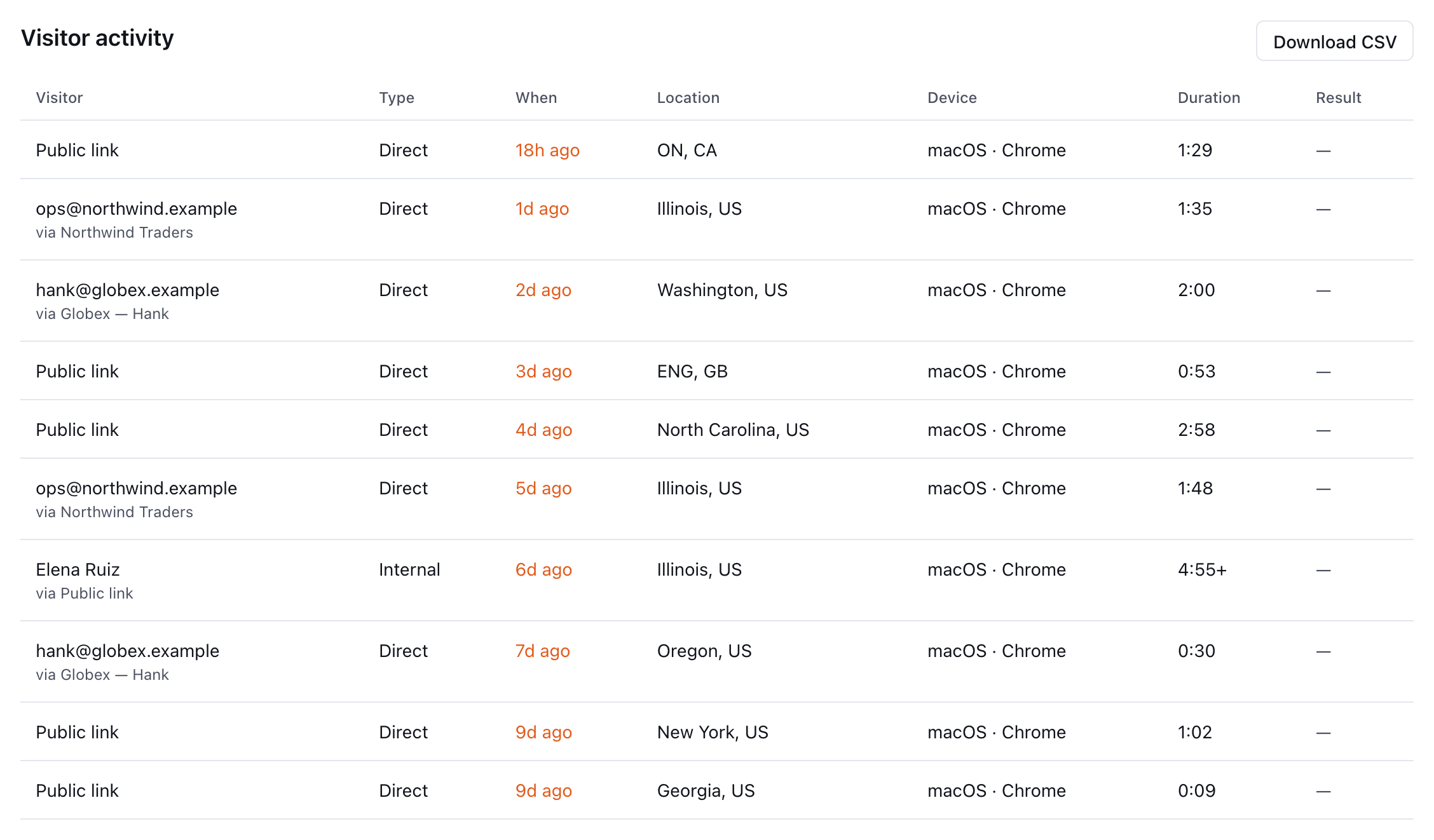
Open the presentation's Insights page. Its Visitor activity table lists every visit with who, when, where, device and duration, and downloads as a CSV.
To see who opened a presentation, open its Insights page: in the sidebar choose Insights, then the presentation's name under Top projects — or, on the presentation itself, choose the chart icon beside the device controls. The Visitor activity table lists every visit, newest first.
How do I get to a presentation's Insights page?
- Choose Insights in the sidebar.
- Under Top projects, choose the presentation.
Top projects lists up to ten presentations, ranked by visitors in the range you picked.
From the presentation itself, the chart icon labeled Insights goes to the same page. When the presentation has results, the icon carries a count badge.
The page opens with the same audience and time range you had selected on Insights. Change them with the two dropdowns at the top. See What do the Insights numbers count?
What does the Visitor activity table show?
| Column | What it shows |
|---|---|
| Visitor | Who opened it (see below). When the visitor came through a differently named link, a second line says via and the link's name. |
| Type | Direct for a link opened on its own, Embed for a visit through a website embed, Internal for someone signed in to the portal. |
| When | When the visit started. |
| Location | Where the visit came from, when known. |
| Device | Operating system and browser. |
| Duration | Time spent on the presentation's screens. A + means idle time was trimmed. |
| Result | A chip for anything submitted during the visit, such as Lead, Quiz or Booking. |
The Visitor column names people as precisely as the link allows:
| How they opened it | Shown as |
|---|---|
| A tracked link with a recipient email | That email address |
| A tracked link with a name and no email | The link's name |
| The public link | Public link |
| A website embed | Website embed |
| Signed in to the portal (your team or Bridger) | Their name, or Internal preview |
A public link never tells you who opened it. To know who, send each person their own tracked link — see How do I share a presentation? and Personalized links.
How do I see what one visitor looked at?
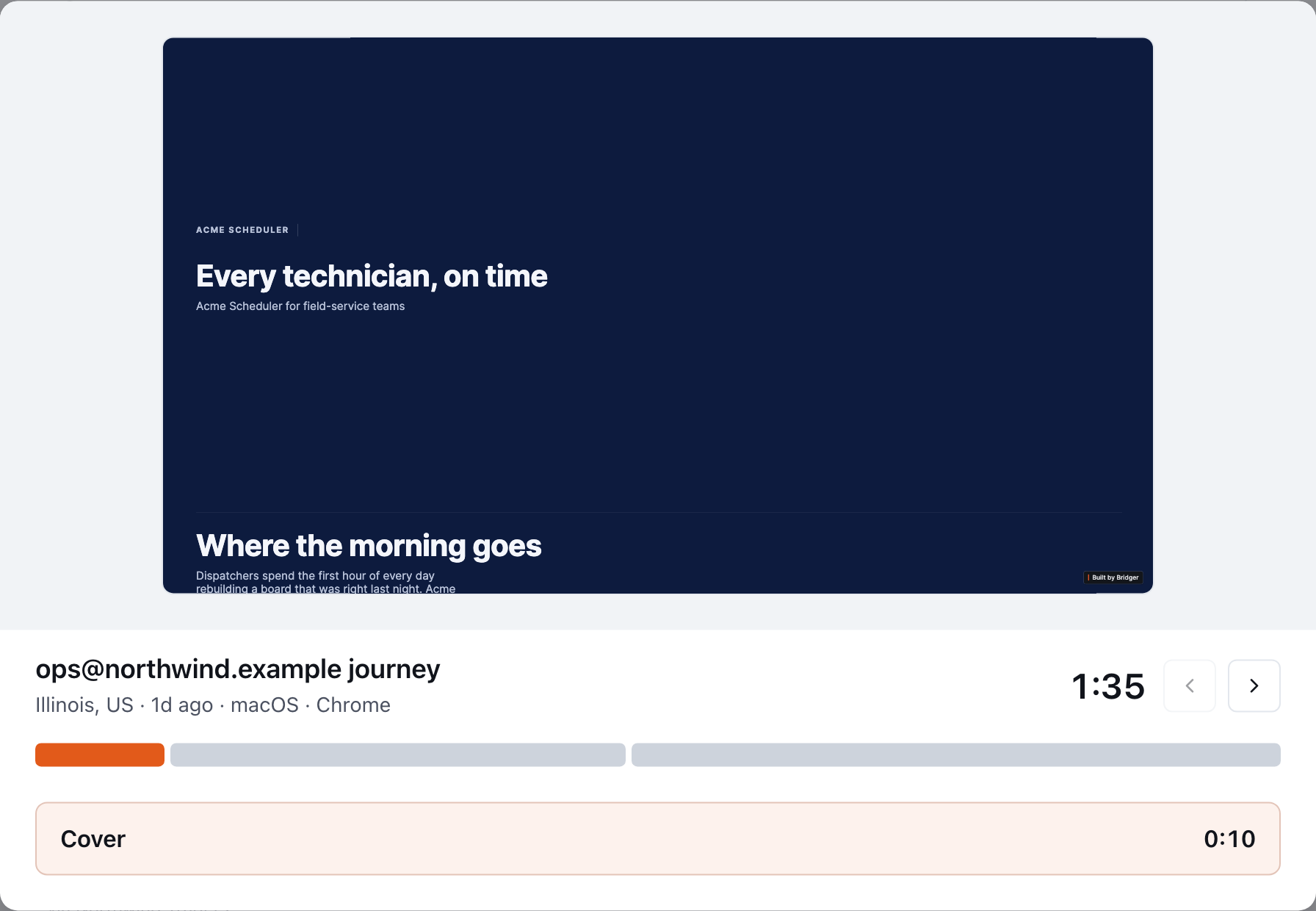
Choose any row. A window opens showing the visit's screens in the order they were viewed, with the time spent on each. If the presentation does not report its screens, the window says so.
From a row with a result, choose the result chip and then View full session → for the visit's own page. It lists Viewer, Source, Link created by (when a tracked link was used), Started, Duration, Location and Device, then Interactions — time per screen — and any Response they submitted. ← Back to presentation returns you to the list.
How do I download the list?
Choose Download CSV, then:
- All sessions — every row in the current view, with result details filled in where there are any.
- With results only — only visits that produced a result.
The file follows the audience, range and All activity / Results filter you have on screen, so set those first. Times in the file are in UTC.
Why is someone I sent it to missing?
- They have not opened it yet, or opened it for under 3 seconds.
- They opened it while signed in to the portal, and your audience filter is External. Switch to All visitors.
- The visit is outside the time range. Choose All time.
- They opened a forwarded copy of someone else's tracked link, so the row shows that person's link.
This did not answer your question? Email hello@bridgercreative.com.