Where do I see form responses and quiz results?
On the presentation's Insights page, under the Results filter. Choose a result to read every answer; New submissions emails and the bell tell you when one arrives.
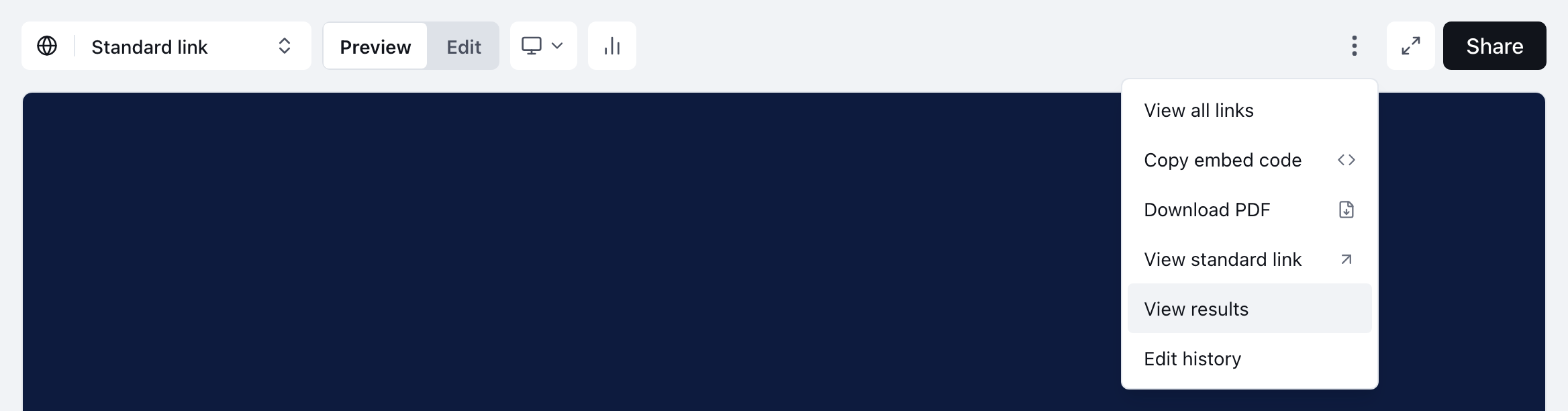
Form responses, quiz answers and bookings are results, and they live on the presentation's Insights page: choose Results above the Visitor activity table, then choose a result's chip to read everything the person submitted. The quickest way there is the presentation's ⋮ menu → View results.
How do I open the results for a presentation?
- Open the presentation from Library or Home.
- Choose the ⋮ menu and then View results.
- The presentation's Insights page opens with the Results filter on, listing only visits that submitted something.
- Choose a result chip, such as Lead or Quiz, to open its details.
You can also go to Insights, choose the presentation under Top projects, and choose Results beside All activity. The filter shows a count, and it appears only once the presentation has at least one result.
What kinds of results are there?
Each result chip names what was submitted:
| Chip | What the visitor did |
|---|---|
| Lead | Filled in a contact form |
| Quiz | Answered a quiz or survey |
| Booking | Booked a meeting |
| Upload | Uploaded a file |
| Goal plan | Completed a goal-planning exercise |
| Estimate | Built an estimate |
Which of these your presentation can produce depends on how Bridger built it.
What is in a result?
The details window lists every field the person filled in, under the result's name and the visitor's name. View full session → opens the whole visit: who they were, how they arrived, how long they spent on each screen, and their Response beside it.
If the window says No captured fields., the submission carried no answers the portal can display.
What is the customer-story panel?
When a presentation includes a customer-story survey, a panel appears below the activity table with two views:
- Summary — Avg. likely to recommend, Promoters (9–10), how many Gave their name, a Likely to recommend chart, and Ready-to-use quotes from their answer to what they would tell someone considering it.
- Individual — one respondent at a time, with every answer. Step through them with the arrows.
This panel covers every response the presentation has received, whatever audience and time range you have selected above it.
Why is a result I expected missing?
- The audience filter. A result from someone signed in to the portal — a teammate testing the form — is Internal. If you are on External, a line above the table says how many results the filter hides; choose Show all visitors.
- The time range. Choose All time in the range dropdown.
- It never arrived. Results appear as soon as they are submitted. If someone says they submitted and nothing is here under All visitors and All time, use Get Help to tell the Bridger team.
How do I hear about new results?
| Where | What you get | How to change it |
|---|---|---|
| One message per result, to you personally | New submissions in Settings → My profile | |
| The bell | A notification naming who responded, where known; choosing it opens that result | Always on |
| The Insights dot | A dot on Insights in the sidebar while a new result is unread in the bell | Always on |
| Slack or a shared mailbox | One message per result to a team channel | Settings → Connectors, event New submission (Workspace owners and Editors) |
Personal email starts only after you have signed in for the first time. See How do I change which emails I get?
Can I limit who sees names and answers?
A Workspace owner can turn on Restrict lead details in notifications to workspace owners and editors under Lead details in notifications in Settings → Team. With it on, Members still learn that a response arrived, but names, contact details and answers in their notifications and emails are hidden. The setting changes notifications and emails only: results on the Insights pages are visible to everyone in the workspace.
Can I download results?
Yes. On the presentation's Insights page choose Download CSV → With results only. Each row is one result with the visit's details and the submitted answers. See How do I see who opened my presentation?
Results cannot be deleted from your workspace. Ask the Bridger team if one needs removing.
This did not answer your question? Email hello@bridgercreative.com.