How do I assign a path to my team?
Press Assign it and choose everyone with a learner seat, one or more job roles, or specific people. Only learner-seat holders can be on a path.
To assign a path in Bridger Sales Academy, open it from Paths, press Assign it, choose who it reaches, and press Save assignment. A path can only reach people with a learner seat: whichever option you pick, anyone without a seat is left out. Assigning sends no email or message; reps find the path the next time they open Learning.
How do I assign a path?
- In Learning, open the Paths tab and choose the path.
- Press Assign it in the right-hand column. (Once a path is assigned, the button goes away; use the gear on the Who is on it tile to change the rule.)
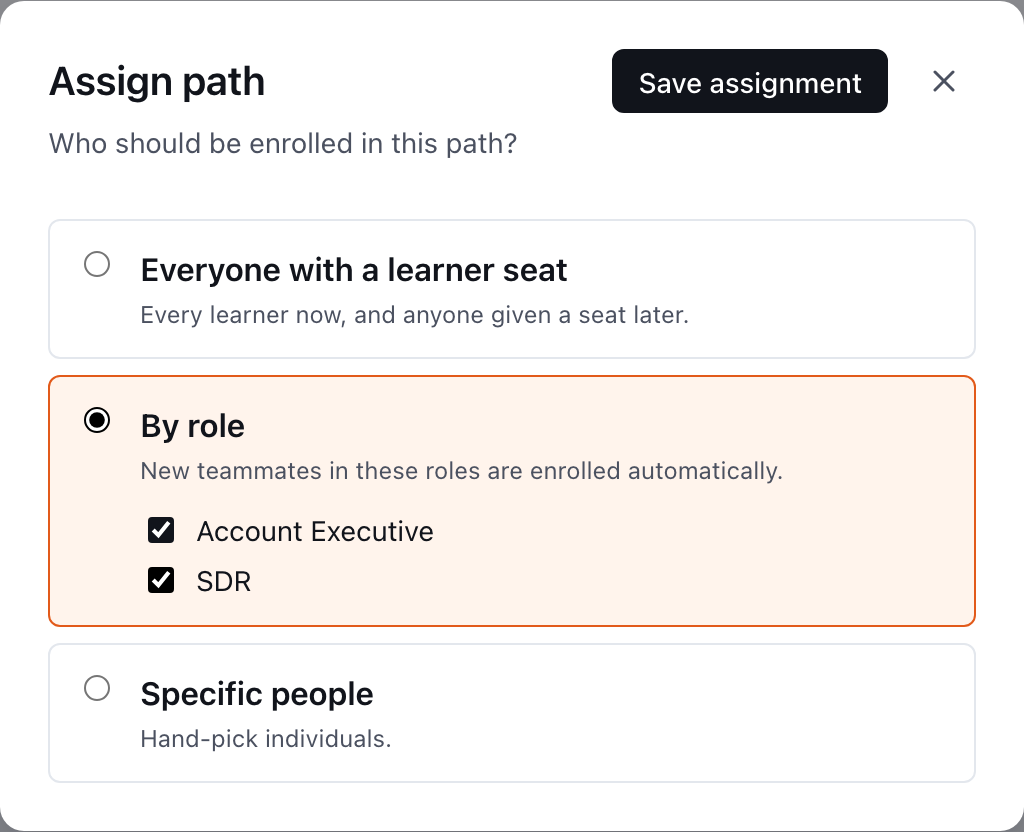
- In Assign path, choose one option:
- Everyone with a learner seat: every learner now, and anyone given a seat later.
- By role: tick one or more job roles. New teammates in those roles are enrolled automatically.
- Specific people: tick the people you want.
- Press Save assignment.
The path's state changes from Draft to Live, and the Who is on it tile lists everyone it now reaches.
Why isn't someone in the list?
Only people with a learner seat can be put on a path, so Specific people and the roster's add list show seat holders only. To add someone, give them a seat first in Settings → Team. See Who can manage Sales Academy, and who needs a learner seat?
If By role says "No job roles yet — add them in Settings → Team.", your workspace has no job roles. Create them with Manage roles on the Team tab, then set each person's job role from their profile.
Do new hires get the path automatically?
With Everyone with a learner seat or By role, yes. The rule is read live, so anyone who later gets a seat, or is given one of the chosen job roles while holding a seat, is on the path from that moment. Specific people never adds anyone on its own.
The reverse is also true: someone whose seat is turned off, whose job role changes away from the rule, or who leaves the workspace drops off the path.
What does the Who is on it tile show?
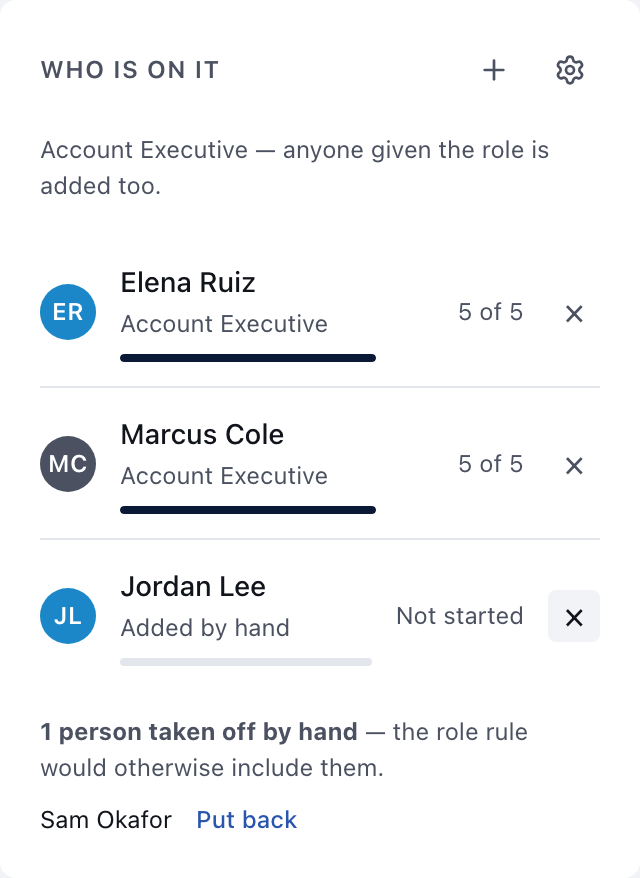
One line in plain words states the rule ("Everyone with a learner seat — anyone given one later is added too.", a list of roles, or "Named people only."). Under it, each person on the path shows with their job role, a progress bar, and either "X of Y" steps done or Not started.
The count is against the path's current steps, so adding a step moves everyone's bar.
Can I add or remove one person without changing the rule?
Yes, from the Who is on it tile:
- Add someone by hand (the +): pick anyone with a learner seat, whether or not the rule reaches them. They show as Added by hand.
- Take someone off: use the × on their row. If the rule would otherwise include them, they are listed as taken off by hand, with Put back to undo it.
Hand changes survive later edits to the rule, with one exception: switching to Specific people replaces everything with the people you tick. Switching from Specific people to a role or everyone also drops the old named list, because those names were the rule.
Adding someone by hand to a path nobody is on yet starts a Specific people rule.
Does anyone get told?
No. Assigning a path, changing the rule, or adding someone by hand sends nothing: no email, no Slack message, no bell notification. Reps see the path under My paths the next time they open Learning. If you want people to start on a particular day, tell them yourself.
For what Sales Academy does send, see Which Sales Academy events send an email or Slack message?
When do due dates start?
Each rep's due dates count from the day they were put on the path, or the day they joined the workspace if that was later. Someone a role rule picks up next month gets dates from next month. See How do I build a learning path?
Can I unassign a path completely?
Assign path has no "nobody" option. To stop a path reaching people, take them off by hand from Who is on it, or delete the path from the menu at the top of the builder.
Related
- How do I see how my team is practicing?
- A rep isn't showing as complete
- Getting started with Sales Academy, the rep's view
This did not answer your question? Email hello@bridgercreative.com.