What content can I add to Sales Academy, and how does it open for reps?
Add Portal projects, articles, uploaded videos, PDFs, PowerPoints and images, or links. What Portal hosts opens in place; other links open in a new tab.
Bridger Sales Academy takes five kinds of content besides plays: your own Portal projects (shown as Interactive), articles written in Portal, uploaded files (videos, PDFs, PowerPoints and images), and links to anything else. What Portal hosts opens in place, so a rep keeps their place; a link to another site opens in a new tab.
You add content as a Learning manager, from New → Content on any manager tab, or from Insert content inside a path lesson. Either way it lands in the Content tab.
How do I add content?
- In Learning, choose New → Content.
- Enter a Title, and optionally a Description.
- Under Where is it?, choose one:
- Interactive, from your Portal library, then pick a published project.
- Article, written here, then write it in the box.
- Upload a file, then Choose a file.
- Paste a link, then paste the URL.
- Decide whether it is Customer-facing (see below).
- Press Add content.
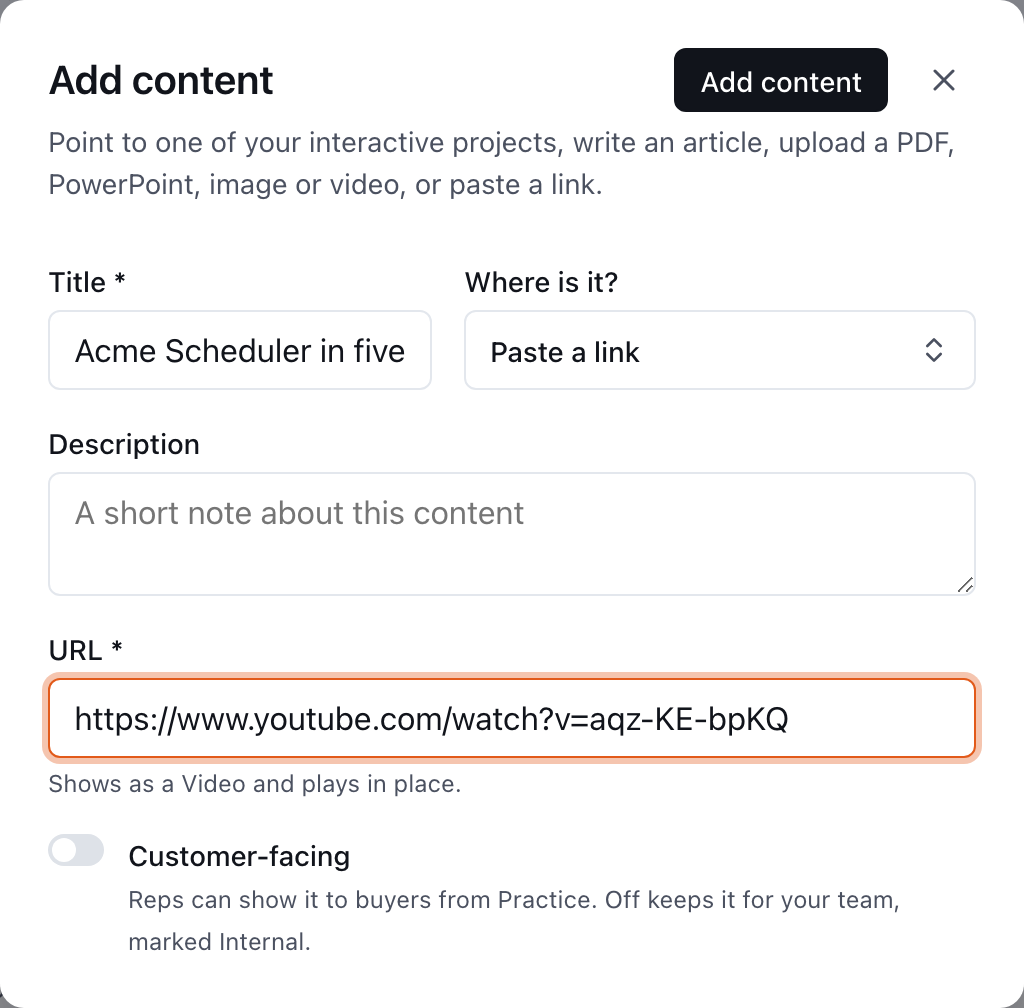
You do not choose the kind yourself. Portal decides it from where the thing is: a pasted YouTube, Vimeo, Loom or Wistia link becomes a Video; a link to an image file becomes an Image; any other link is a Link. Once content is saved, its kind cannot be changed. To change it, add it again.
What can I upload?
| File | Formats | Largest file |
|---|---|---|
| Video | MP4, WebM, MOV | 25 MB (about 20 minutes at 720p) |
| PDF or PowerPoint | PDF, PPTX, PPT | 20 MB |
| Image | PNG, JPG, WebP, GIF | 10 MB |
Uploaded files are stored privately: only people in your workspace can open them. Your workspace has a shared allowance for uploads, and the upload field shows how much of it is used. For a longer video, put it on Loom, YouTube, Vimeo or Wistia and paste the link; it still plays in place.
How does each kind open for a rep?
A rep meets content in two places: inside a path lesson, and beside a play (its recommended resources, and the cards on their Practice page). Both open what Portal hosts in place, over the page, so the rep keeps their place.
| Content | Inside a path lesson | Beside a play, on Practice |
|---|---|---|
| Interactive (a Portal project) | Its cover, with Open full screen | Opens full screen, over the page |
| Video, uploaded or a YouTube, Vimeo, Loom or Wistia link | Plays in the lesson | Plays over the page |
| Image | Shows in the lesson | Shows over the page |
| Uploaded PDF | Opens in a viewer over the lesson | Opens in a viewer over the page |
| Uploaded PowerPoint | Downloads | Downloads |
| Article | Opens in Portal | Opens in a new tab |
| Link, including a PDF or slides hosted elsewhere | Opens in a new tab | Opens in a new tab |
From the Content tab itself, an Interactive project or an Article opens in the same tab and everything else opens in a new tab.
A PowerPoint cannot be shown in a browser, so it downloads. If reps only need to read it, export it to PDF and upload that instead.
Only published Portal projects can be added. If a project is later unpublished, it stops opening for reps.
Does opening content count as completing it?
It depends where it is opened.
- Inside a path, opening content completes nothing. Every lesson waits for the rep to tick Mark done.
- From the Content tab, opening an Interactive project or a Video completes it automatically. Articles, documents, images and links never complete on their own.
Opens are recorded either way, and show on the Activity tab. See How completion is counted.
What does Customer-facing mean?
Customer-facing marks content a rep may show or send to a buyer from Practice. Off keeps it for your team and marks it Internal. A Portal project is always customer-facing.
On the Content tab, the What can I send? filter shows only customer-facing content.
How do I organize or remove content?
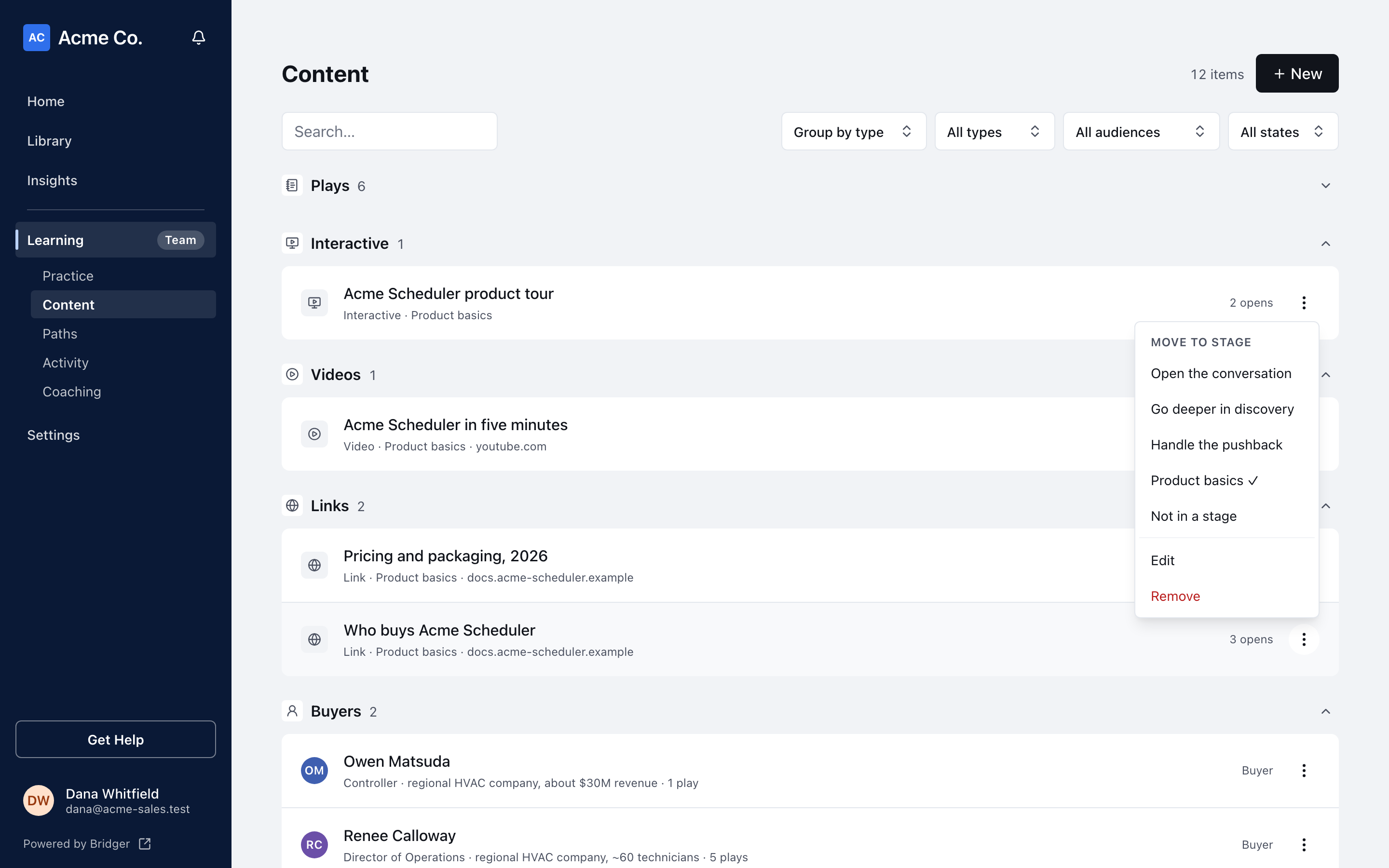
The Content tab lists everything, grouped by stage, by path or by type, with filters for type, state and audience. Each row's menu offers Move to stage, Edit, and Remove. Remove takes the item out of Learning and cannot be undone.
Related
- How do I build a learning path?
- How do I create and publish a play?
- What is an interactive presentation?
This did not answer your question? Email hello@bridgercreative.com.