How do I build a learning path?
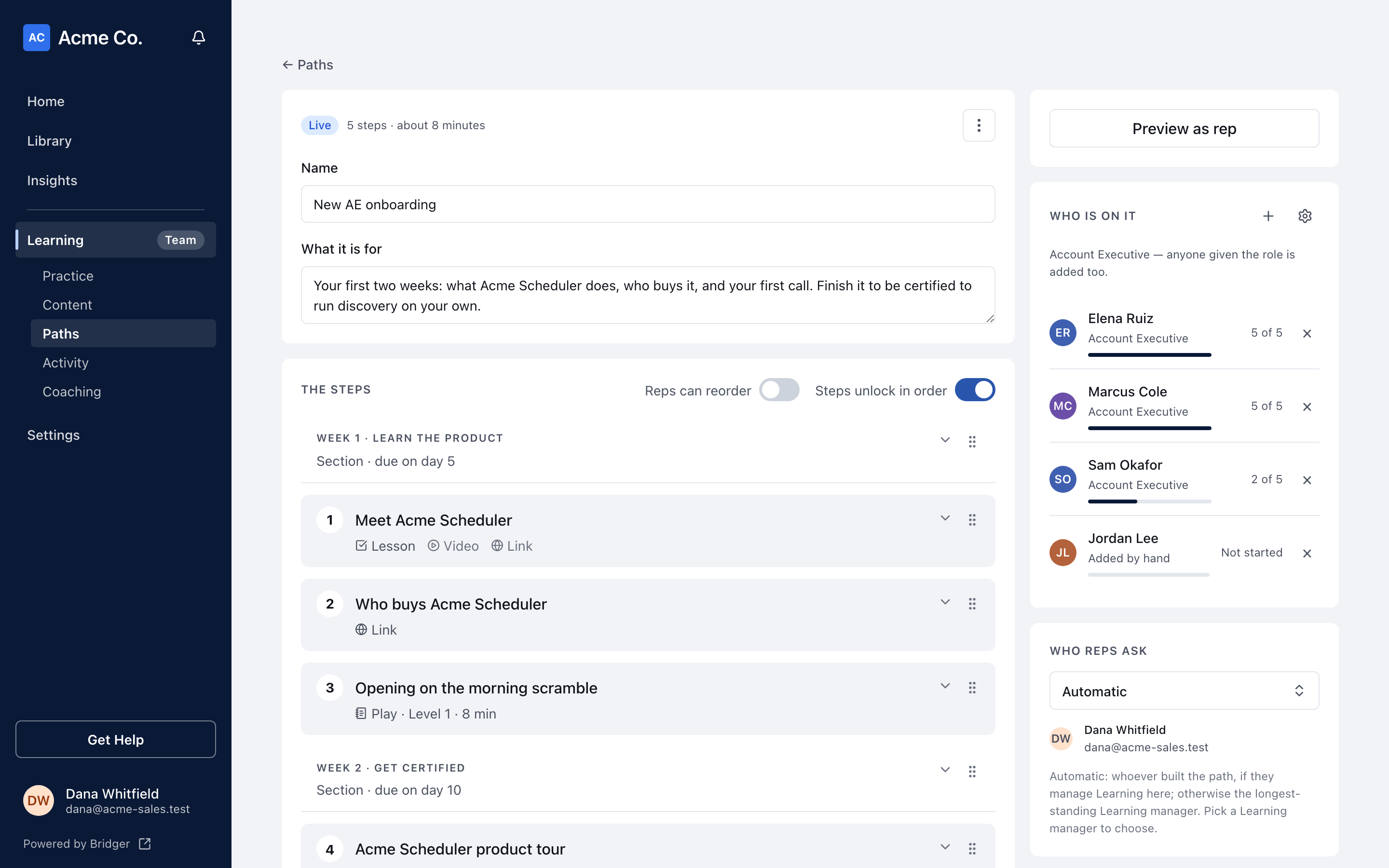
Create a path from New, then add lessons, plays, sections and checkpoints in the builder. Every field saves as you leave it.
To build a path in Bridger Sales Academy, choose New → Path on any manager tab, name it, then add steps in the builder: lessons, plays, sections and checkpoints. There is no Save button for the path itself; each field saves when you click out of it. Nobody sees the path until you assign it.
You need to be a Learning manager to build paths. See Who can manage Sales Academy.
How do I start a new path?
- In Learning, choose New → Path.
- Enter a Path name. Audience label is optional.
- Press Create & add steps. The builder opens on the new path.
- Under What it is for, say what people should be able to do once they have been through it.
- Choose Add step under The steps and add your first step.
The head of the builder shows the path's state: Draft until it is assigned to someone, Live after that. Beside it is the step count and, when the path holds plays, roughly how many minutes they take.
What kinds of step can a path have?
Add step offers four kinds. Anything else (a video, a document, a link) goes inside a lesson. A lesson, section or checkpoint asks for its name first, under Lesson title, Section heading or Checkpoint name.
| Step | What it is | When a rep's step is done |
|---|---|---|
| Lesson | Your own text, with content inserted between paragraphs | When the rep ticks Mark done |
| Play | A published play from Content, run in Practice | When the rep runs it through to Review |
| Section | A heading that groups the steps under it, with an optional due day | Never. It is a heading, not a step |
| Checkpoint | One to five multiple-choice questions | Once every question is answered, right or wrong |
A play that is unpublished stays in the builder marked Play · unpublished, reps can't run this, and reps do not see it. It does not count toward finishing the path.
How do I put a video, document or presentation inside a lesson?
Open the lesson and use the row buttons under its text:
- Add text adds another paragraph block.
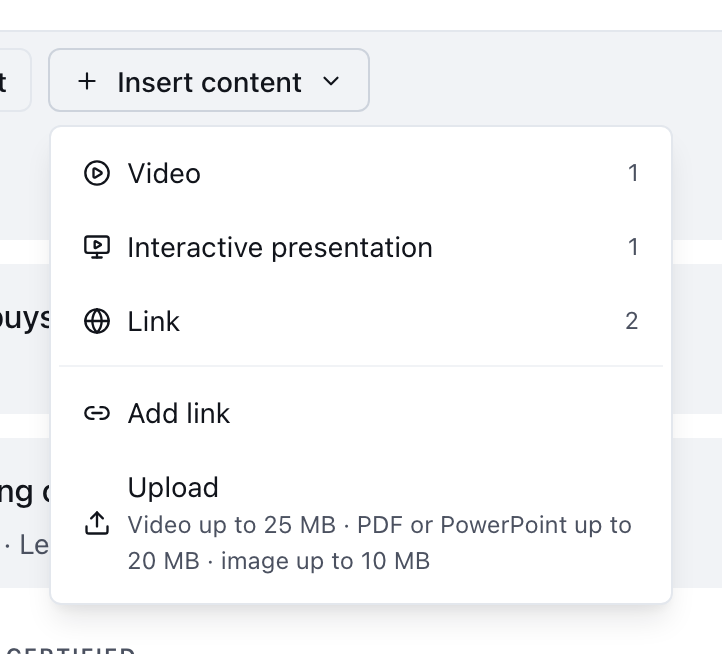
- Insert content lists each kind of content you already have (Video, Image, Document, Interactive presentation, Link), then Add link and Upload for something new. Whatever you add this way is also saved to Content.
Drag the blocks into the order you want, and use Preview at the top of the lesson to read it the way a rep will. Each inserted block says where it opens for the rep:
| Inserted | How it opens for a rep |
|---|---|
| Video (an upload, or a YouTube, Vimeo, Loom or Wistia link) | Plays in the lesson |
| Image | Shows in the lesson |
| Interactive presentation (one of your published Portal projects) | Shows its cover; Open full screen opens it over the lesson |
| Uploaded PDF | Opens in a viewer over the lesson |
| Anything else (a link, a PowerPoint file) | Opens in a new tab |
Only published projects can be inserted. More on each kind: What content can I add to Sales Academy?
How do I set due dates?
Due dates live on sections. Open a section and fill in Due on working day. Day 1 is the day a rep is put on the path; leave it empty for no date.
Working days are Monday to Friday. Holidays are not skipped. Each rep's dates count from the day they were put on the path, so someone assigned next month gets next month's dates. A due date is a reminder for the rep, never a lock: steps stay open after it passes.
Can I make steps unlock in order?
Yes. Turn on Steps unlock in order above the steps. Each step then unlocks once the one before it is done, and later steps show as Locked to the rep. Plays are the exception: a play is never locked and never holds back the steps after it.
When the path includes a play, a second switch appears: Reps can reorder lets reps put this path's plays in their own order on their Practice page.
How do I add a checkpoint?
Choose Add step → Checkpoint, name it, then open it. Each question needs a prompt and two to five options, with one marked as the right answer, and can carry an optional explanation shown after the rep answers. Draft with AI writes questions from the content above the checkpoint; check every answer before you press Save checkpoint. As the editor notes, a checkpoint has no pass mark of its own: it is done once every question is answered, and a certification sets its own pass mark.
Who will reps be told to ask?
The Who reps ask tile picks the person a rep's path names under "Stuck on something?". Leave it on Automatic or choose a Learning manager by name. Automatic means the person who built the path when they are a Learning manager, and otherwise the workspace's longest-standing Learning manager. If the workspace has no Learning manager, the tile says Nobody yet: the workspace has no Learning manager to ask.
On a certifying path, the person you choose here is also the one asked to sign off. See How do I make a path certify reps?
How do I see the path as a rep will?
Preview as rep opens the path's room, the screen a rep works through, as a new rep would see it: nothing done, and nothing you do there saved. The bar at the top reads Viewing as a new rep. Try anything: nothing here is saved. To see the path as a particular person, use Preview as… on the Practice tab and choose them.
How do I reorder or remove steps?
Drag a step by its handle. Open a step and choose Delete step to remove it. Removing a play takes it off this path only; the play stays in Content. Removing a lesson or checkpoint also removes anything reps had done on it.
Adding a step to a path people are already on moves everyone's progress, because progress is counted against the path's current steps. See A rep isn't showing as complete.
To delete the whole path, use the menu at the top of the builder and choose Delete path. The content its steps point at is untouched.
Related
This did not answer your question? Email hello@bridgercreative.com.