How do I approve or send back a certification?
Open the path's Certification section, read the evidence, then press Approve and certify, or write a note and press Not yet.
To approve a certification in Bridger Sales Academy, open the path from Paths, scroll to its Certification section, check the evidence on the request marked Awaiting your sign-off, and press Approve and certify. To send it back instead, write a note in the box and press Not yet; the note is required. Any Learning manager other than the rep can decide, and a decision cannot be changed afterward.
How will I know a rep is waiting?
A rep can only press Request sign-off once every other requirement is met. Then:
- By email, if Practice coaching is on in your Settings → My profile. The subject reads " is ready to be certified on ", and Review and decide opens the path's Certification section. The email goes to the person chosen under Who reps ask on that path when they are a Learning manager, and otherwise to every Learning manager.
- In a team channel, if your workspace's Slack channel or shared support mailbox has Certification ready for sign-off ticked.
- In the path builder, where the request sits at the top of the Certification section until someone decides it.
How do I decide?
- In Learning → Paths, open the path, or follow the link in the email.
- Scroll to Certification, under the steps. Each request shows the rep's name, Awaiting your sign-off, and the date it was requested.
- Read the evidence:
- Every step done, with the count.
- Checkpoints, with the pass mark needed and each checkpoint's best score, plus the first-try score where it differs.
- Recorded roleplay, with the play, who graded it, and whether it meets the standard.
- To approve, press Approve and certify. A note is optional.
- To send it back, write what they need to do in the note box, then press Not yet.
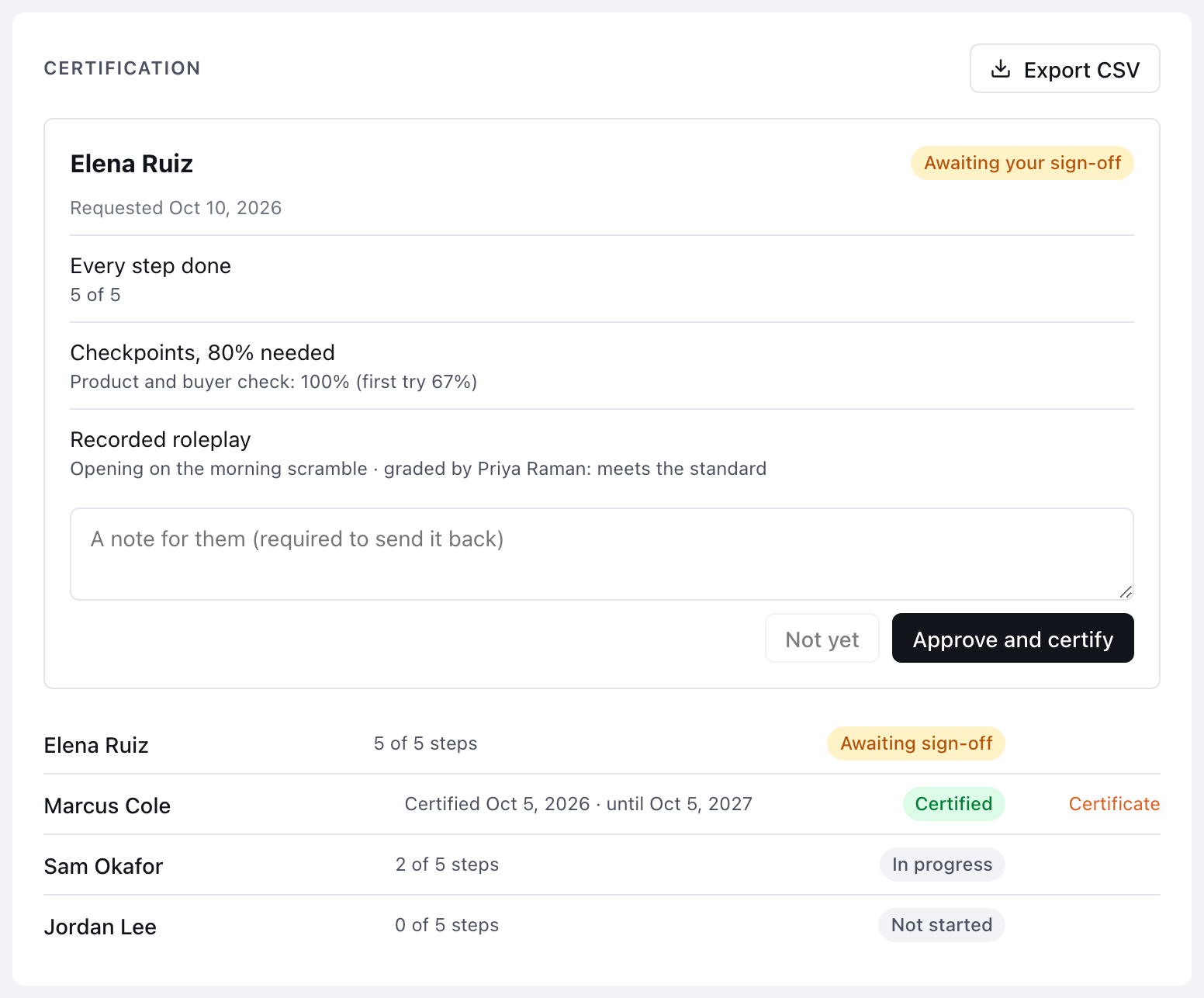
The evidence is what was true when the rep pressed Request sign-off. It is saved with the request and does not change if the rep does more afterward.
What happens when I approve?
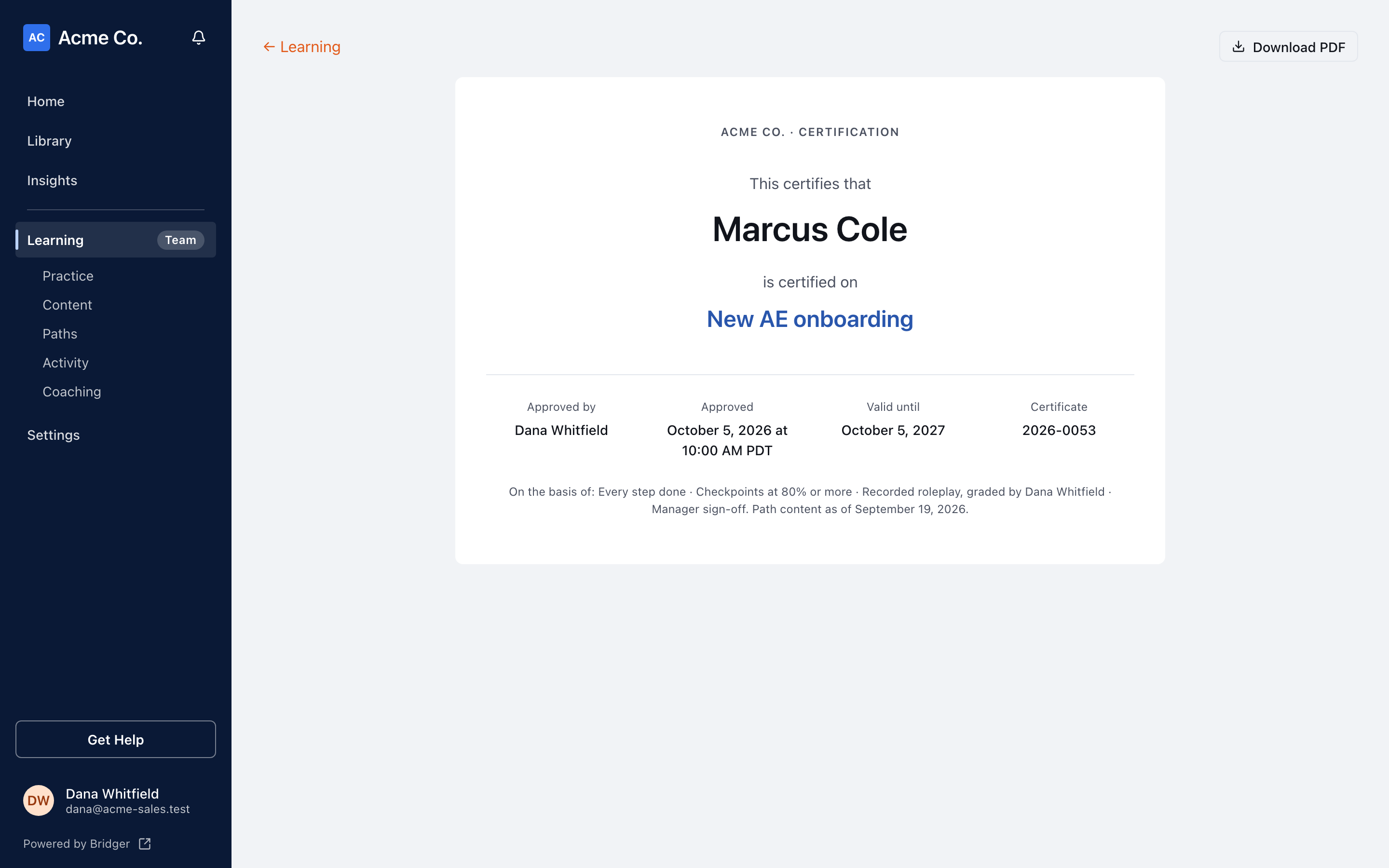
- The rep is certified. The record keeps your name, the time, and an expiry date if the path's Valid for is set.
- The rep gets an email, "You are certified on" the path, with a link to their certificate (if they have Practice coaching on).
- A team channel with Rep certified ticked gets a message naming the rep, the path and you.
- The rep shows as Certified in the path's list, with a Certificate link.
The certificate shows the rep's name, the path, a certificate number, Approved by, the approval date, Valid until (or No expiry), what was required, and the date the path's content was current as of. Download PDF on the certificate saves it through the browser's print dialog.
What happens when I send it back?
The rep is emailed that you sent it back, with your note, if they have Practice coaching on. Their path shows Sent back and your note. Nothing goes to any team channel: a certification sent back stays between you and the rep. Once they have dealt with your note, they can request sign-off again.
Can I change a decision?
No. Once a request is approved or sent back, it is closed; a second manager who tries to decide it is told "This request has already been decided." An approval is never edited. If a rep needs certifying again, for example after it expires, they make a new request and it gets a new record.
Can a rep take a request back?
Yes. While it is waiting, the rep can press Take it back, and it disappears from your list.
How do I report on who is certified?
The Certification section lists everyone on the path with their status. Press Export CSV for the list with each person's steps done, status, certification date, approver, expiry and certificate.
Related
- How do I make a path certify reps?
- How do I review a rep's coaching request?
- Earning a certification, the rep's side
This did not answer your question? Email hello@bridgercreative.com.