My practice recording won't start
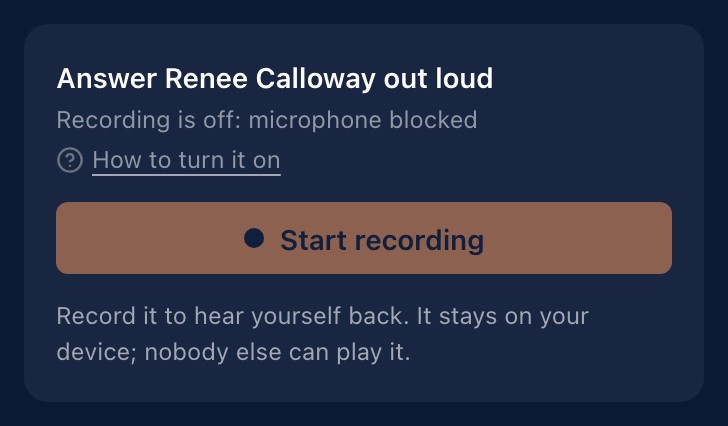
The tile says whether the microphone is blocked, missing or in use by another app. Fix that, and Start recording works again.
The recording tile tells you which of three things is wrong:
| The tile says | What is happening | What to do |
|---|---|---|
| Recording is off: microphone blocked | Your browser has refused this site the microphone. Start recording is greyed out. | Allow the microphone for this site in your browser's settings. Start recording works again, usually without reloading the page. |
| Recording is off: no microphone found | No microphone is connected or selected. | Connect a microphone, then press Start recording again. |
| Recording is off: microphone in use by another app | Another app, such as a video call, is holding the microphone. | Close the other app using the microphone, then press Start recording again. |
For the last two, the button stays pressable so you can retry once it's fixed. Each message has a How to turn it on link back to this page.
Recording is optional. You can run a play, answer out loud and grade yourself without it. The recording is there so you can hear yourself back.
How do I unblock the microphone?
Check these in order.
- Allow the microphone for this site. Click the icon at the left of the address bar (a padlock or a settings icon, depending on the browser). Find Microphone and set it to Allow. In Safari, use Safari → Settings → Websites → Microphone and choose Allow for this site.
- Allow your browser to use the microphone at all. The computer has its own permission, separate from the browser's.
- macOS: System Settings → Privacy & Security → Microphone, then switch on your browser. You may need to quit and reopen the browser afterwards.
- Windows: Settings → Privacy & security → Microphone. Make sure microphone access is on, and that desktop apps may use it.
- Reload the page. If you changed a setting and the button is still greyed out, reload. Then run the play again and press Start recording on the Answer out loud step.
- Answer the browser's prompt. The first time you press Start recording, the browser asks whether this site may use your microphone. Choose Allow. If you choose Block, you're back at step 1.
There's no recording tile at all
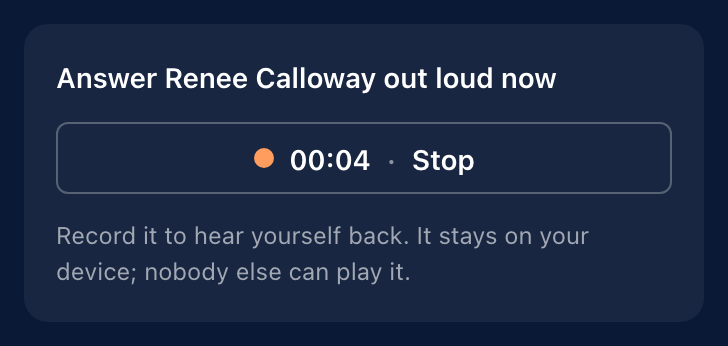
The tile only appears where your browser supports recording. Recordings are saved on your device, so the browser also has to let the page store data. If either is missing, the tile is hidden rather than shown and broken.
Try these:
- Update the browser, or switch to a current version of Chrome, Edge, Safari or Firefox.
- Leave private or incognito mode, and try a normal window.
- Ask IT if your browser is managed by your company. A policy can switch off the microphone or site storage.
The tile also appears only on the Answer out loud step of a play. On the steps before and after it there's nothing to record.
Less likely causes
| What you notice | What is happening |
|---|---|
| The recording stopped by itself | Opening the strong answer ends the take. The tile says Ended when you opened the strong answer, so the take is only yours. |
| Your earlier takes are gone | Takes are kept only in this browser on this device for 30 days. Another device, another browser or cleared site data won't have them. See Where do my practice recordings go?. |
For the play itself, see Running a practice play.
This did not answer your question? Email hello@bridgercreative.com.